
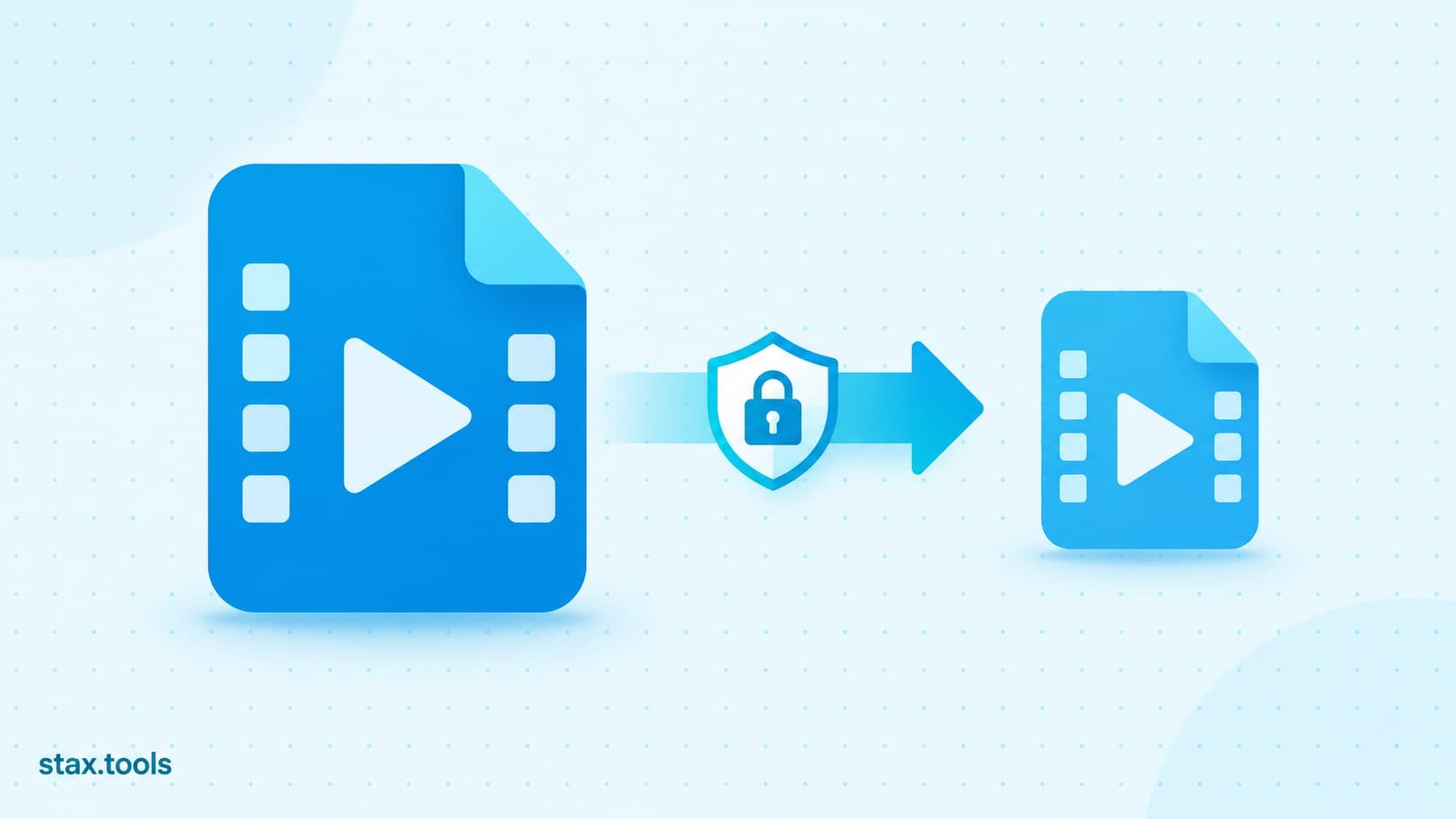
Every "compress video online" search leads to the same trade: your video goes up to a stranger's server, gets processed in their cloud, and comes back smaller — with a copy of your recording sitting on hardware you'll never see. For a meme that's fine. For a video of your kids, a work presentation, or screen footage with your email open in a tab, it's a strange default.
There's now a third option between cloud converters and installing desktop software: compression that runs entirely inside your browser. The same open-source engine that powers most video software — FFmpeg — has been compiled to WebAssembly, which means your browser can do the work locally. The engine downloads to you; your video goes nowhere.
This guide walks through the whole process, explains what the settings actually do, and covers the cases where browser compression isn't the right tool.
What you need to know first
Video files are large because cameras record generously. A phone shooting 4K at 50–100 Mbps doesn't know which detail will matter later, so it keeps nearly everything — which is why a one-minute clip can weigh 400 MB. Compression re-encodes the video at a quality level your eyes actually need, typically with the H.264 codec that plays on effectively every device made since roughly 2010.
The quality dial in modern encoders is called CRF (Constant Rate Factor). Lower numbers mean higher quality and bigger files; higher numbers mean stronger compression. The practical range for sharing is roughly CRF 23–32 — at 23 the result is nearly indistinguishable from the source, and around 28 most people can't spot the difference on a phone screen.
Step 1: Open a compressor that doesn't upload
Use the Stax video compressor — it runs FFmpeg in your browser tab. The honest way to verify any tool's "we don't upload" claim: open your browser's developer tools, watch the Network tab, and confirm no request carries your file's megabytes. With a client-side tool you'll see one download (the engine, roughly 31 MB, once per session) and no uploads at all. You can even disconnect from the internet after the engine loads and compression still works.
Why this step matters: the whole point is that footage of your family, your screen, or your work never becomes someone else's server log.
Step 2: Drop in your video
Drag the file onto the drop zone or click to browse. MP4, MOV, WebM, AVI, and MKV all work — practically anything FFmpeg can read, which is nearly everything a phone or camera produces.
One honest limit: because processing happens in browser memory, very large files depend on your device's RAM. Files up to roughly 500 MB work well on most computers. For an hour-long recording, trim out the part you need first (Step 3) rather than compressing the whole thing.
Why this step matters: knowing the memory ceiling up front saves you from a failed job at the 90% mark on a 2 GB file.
Step 3: Trim before you compress
If you only need a section — the 30 seconds for a WhatsApp status, the highlight from a match — cut it first with the video trimmer using its Fast mode. Stream-copy trimming finishes in seconds with zero quality loss, and every downstream step gets cheaper: a 30-second clip compresses in under a minute where the full video might take ten.
Why this step matters: trimming is free compression. Cutting 90% of the timeline beats any encoder setting you'll ever choose.
Step 4: Pick the right preset
Three presets cover almost every real case:
| Preset | What it does | Best for |
|---|---|---|
| Light | CRF 23, keeps original resolution | Archiving, footage you'll edit again |
| Balanced | CRF 28, caps width at 1280 px | WhatsApp, email, web embeds — the default |
| Strong | CRF 32, caps at 854 px (480p) | Previews, chat, when size matters most |
Balanced is the right answer when unsure. Phone recordings routinely shrink 50–80% at this setting, because cameras record with far more bitrate headroom than playback needs. Screen recordings compress even harder; already-compressed downloads shrink least — you can't squeeze the same sponge twice.
Why this step matters: picking Strong for a video you'll later project on a big screen, or Light for a WhatsApp forward, wastes either quality or bandwidth. Match the preset to the destination.
Step 5: Compress and check the result
Click compress and watch the progress bar. Expect roughly real-time speed on a modern laptop — a 2-minute clip takes about 2 minutes — because a single browser thread is doing what cloud services throw server farms at. That's the price of privacy, paid in patience rather than data.
The result card shows the exact size reduction. Before sharing, play the output start to finish once: check that audio stays in sync and motion looks clean. At Balanced settings problems are rare, but thirty seconds of checking beats resending a broken file.
Why this step matters: "it downloaded" and "it plays correctly" are different claims. Verify the second one.
Step 6: Share it — or keep going
The output is a standard MP4 (H.264 + AAC) with faststart enabled, so it streams immediately on WhatsApp, Slack, email, or a website. If you need something else from the same source, the sibling tools run on the same already-downloaded engine: extract the audio as MP3 for a lecture recording, or turn a highlight into a GIF for a README or bug report.
Troubleshooting: when the compression fails or looks wrong
"Conversion failed" on an otherwise normal file. Usually an unusual codec inside a familiar container — an .mp4 wrapper can hold video streams the browser build doesn't decode, like some HEVC variants from action cameras. Two fixes: run the file through the video converter targeting MP4/H.264 first, or if it came from an iPhone, check whether the phone recorded in "High Efficiency" mode (Settings → Camera → Formats → Most Compatible avoids this at the source).
The tab crashes or hangs on a large file. That's the browser hitting its memory ceiling — the input, the working buffers, and the output all live in RAM together. Trim first, close other heavy tabs, or split the job into parts. A file that fails at 1.2 GB will often sail through as three 400 MB pieces.
The output looks blocky or smeared in fast motion. You've compressed past what the content can absorb — high-motion footage (sports, games, handheld walking shots) needs more bits than a talking-head clip. Step up one preset (Strong → Balanced → Light) and re-run from the original file, never from the already-compressed copy: every re-encode of a re-encode stacks generation loss.
Audio out of sync after compression. Rare with clean sources, more common with files that were themselves screen-recorded or previously edited with variable frame rates. Re-encoding in Precise mode via the trimmer (which rebuilds timestamps) before compressing usually straightens it out.
The file barely shrank. The source was already efficiently compressed — WhatsApp forwards, YouTube downloads, and social media saves have had their headroom squeezed out already. Roughly speaking, the second compression of any file buys little; the big wins live in camera originals.
When browser compression isn't the right tool
Be honest about the limits. If you're batch-processing fifty files, working with 4K footage over a gigabyte, or need two-pass encoding for exact target bitrates, install FFmpeg locally or use a desktop editor — your machine's full horsepower without a browser's memory constraints. And if the platform you're posting to recompresses everything anyway (Instagram and YouTube both do — see YouTube's own upload encoding guidance), upload near-original quality and let their pipeline do the shrinking; compressing first just stacks two generations of loss.
Sources & methodology
- FFmpeg project — the open-source engine (and its WebAssembly build) that performs the actual encoding described here.
- YouTube recommended upload encoding settings — platform-side recompression behaviour referenced in the last section.
- Compression ranges quoted (50–80% at CRF 28) are typical results for phone-camera H.264 footage re-encoded with x264; your exact savings depend on the source's bitrate, resolution, and content. Figures are illustrative, not guarantees.
Harshil writes about privacy-first tools, developer productivity, and the trade-offs between browser-based and uploaded utilities.
TL;DR: Drop your video into a browser-based, FFmpeg-powered compressor, choose Balanced (CRF 28), and download a file typically 50–80% smaller — with the video never leaving your device. Trim first, verify playback after, and skip browser compression for gigabyte batches where desktop FFmpeg fits better.

Harshil
Developer & Founder, stax.tools
Harshil is the developer behind stax.tools, building privacy-first tools that run entirely in your browser.
More by Harshil →Tools mentioned in this article
- Video Compressor
Compress MP4, MOV, and WebM videos in your browser — no upload, no watermark, no size limit.
- Video Trimmer
Cut a clip out of any video by start and end time — instant stream-copy or frame-accurate modes, all in-browser.
- MP4 to MP3 Converter
Extract audio from your video files as MP3, M4A, or WAV — processed on your device, nothing uploaded.
- Video to GIF Converter
Turn any video clip into a high-quality GIF with palette optimization — pick start time, length, size, and frame rate.
Related reading
 How to Generate a Strong Password (And Why You Don't Need to Remember It)What makes a password truly secure, how entropy works, why 'P@ssw0rd' is weaker than 'correct-horse-battery-staple', and how to use Stax's browser-based password generator and strength checker without your passwords ever leaving your device.11 min read
 How to Convert Images to WebP Without Uploading: Complete GuideWebP images are 25–35% smaller than JPG at the same visual quality. Here's how to convert entirely in your browser — no upload, no account, no file size limits — plus when WebP is the wrong choice.8 min read
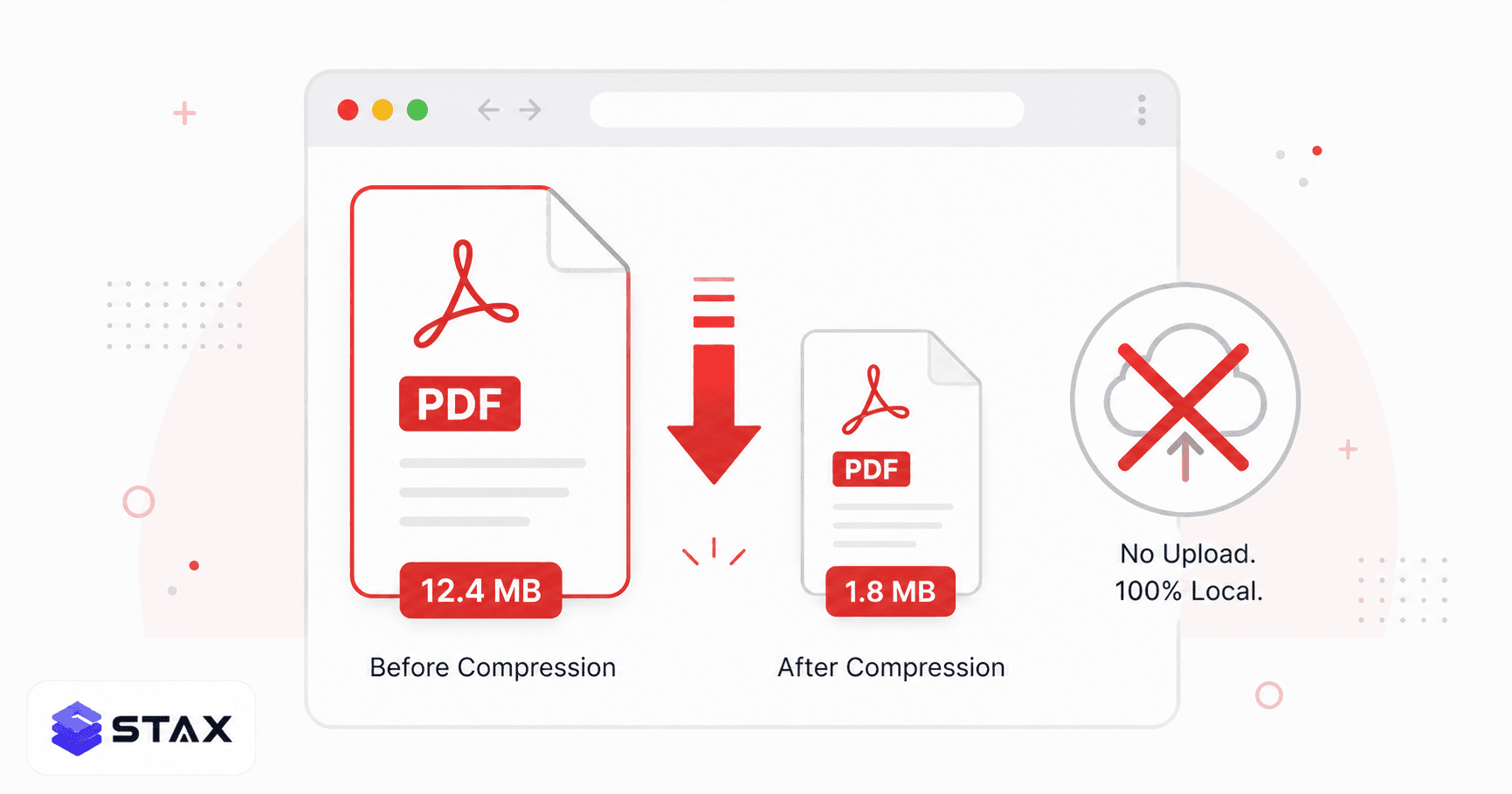 How to Compress a PDF Without Uploading It AnywhereMost PDF compressors upload your file to a server. Here's how to reduce PDF size entirely in your browser — free, private, and with no file size limits.7 min read
 10 Browser-Based Alternatives to Cloud Tools That Don't Upload Your DataEvery tool on this list runs entirely in your browser. No uploads, no server processing, no account required. Your files and data stay on your device.8 min read
Found this useful?
Browse 235+ free privacy-first tools — no login, no uploads, instant results.