
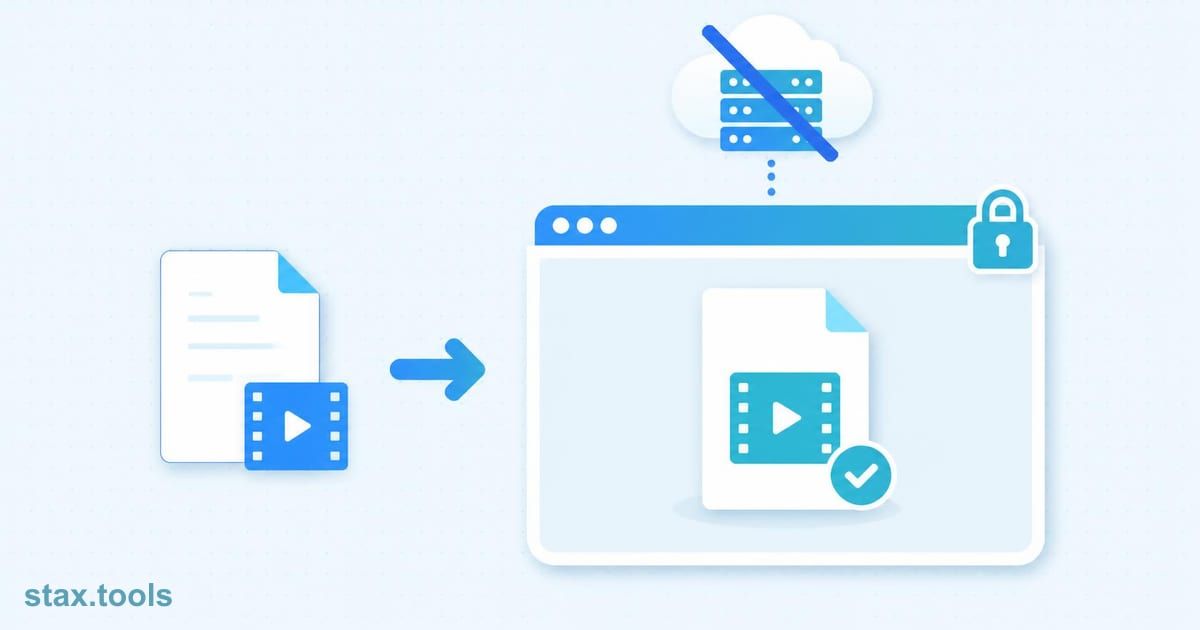
You want to trim a video, merge two contracts or shrink a photo, and the first search result says "free, private, no sign-up". Does an online tool upload your file anyway? The page will not tell you honestly, but your browser will, and the check takes about two minutes. This guide shows two tests that work on any website, including ours, so you never have to take a privacy claim on trust.
Does an online tool upload your file? Why "private" proves nothing
Plenty of tools say "secure" or "we delete files after an hour". Those are promises about what happens after your file has already left your device. A tool that never uploads has nothing to promise, because the file never reaches anyone.
There are two ways a web tool can work. A server-side tool sends your file to a computer it controls, processes it there and sends the result back. A client-side tool downloads its code to your browser and processes the file on your own device. Modern browsers can do heavy work locally: WebAssembly lets compiled code run inside the browser's sandbox, and projects such as ffmpeg.wasm bring a full video engine into a tab. So "runs in your browser" is a real, checkable design, not just marketing.
Test 1: watch the Network tab for uploads
This works in Chrome, Edge and other Chromium browsers on a desktop. Firefox and Safari have similar panels.
- Open the tool's page, but do not choose a file yet.
- Press F12 (or right-click, then Inspect) and open the Network tab.
- Click the clear button so the list is empty, and tick Preserve log.
- In the filter box type
method:POST. Chrome's Network reference documentsmethod:andlarger-than:as filter properties. Later, repeat withmethod:PUT. - Now use the tool the way a normal visitor would: choose the file, run it, and download the result.
- Look at what appeared in the list.
An upload shows up as a request whose body is roughly the size of your file. Click the request and check the Payload tab, or the Content-Length line under Request Headers. One trap: the Size column shows the size of the response, per the same reference, so a 200 MB upload that gets a tiny "OK" back looks harmless there. Always look at the request, not the Size column.
Typing larger-than:500k in the filter is a quick way to spot big transfers, but remember it matches large downloads too, such as the tool's own code. That brings up the most common false alarm.
What you will see on a genuinely client-side tool
Expect some traffic even when nothing is uploaded:
| What you see | What it usually means |
|---|---|
| One large download (tens of MB) when you pick a file | The tool fetching its engine, such as a video library. It is a download, not an upload. |
| Small POST requests to an analytics address | Page views and button clicks. Check the payload: it should be a few hundred bytes of event names, never your file. |
| Requests to fonts, images or scripts | Normal page assets. |
| A POST or PUT with a payload close to your file's size | An upload. The tool is sending your file somewhere. |
| A long-lived WebSocket that carries data while the tool runs | Also worth inspecting; some tools stream files this way. |
On our video trimmer, for example, you will see the video engine download once (about 31 MB) when you choose a file. You will also see small analytics requests to our own first-party counter and to Google Analytics and Microsoft Clarity. Those carry page and event names, and when you choose a file they also carry its type and size (for example video/mp4 and 71 MB), plus a short error description if something goes wrong. They never carry the file's name or contents, and nothing near the size of your video leaves the tab.
Test 2: the offline test (the strongest check)
The Network tab is evidence; the offline test is proof, because a tool with no connection cannot send anything.
- Open the tool and choose your file so that the page and any engine it needs have fully loaded.
- In DevTools, open the Network tab and choose Offline from the throttling drop-down. Chrome's reference describes it as simulating a completely offline network.
- Run the tool and download the result.
If it finishes, the work happened on your device. If it fails with a network error, it needed a server. On a phone, where DevTools is not available, load the page, switch on airplane mode, then run the tool.
Two things can make this test confusing. Some tools load their engine only when you press the button, so choose the file first and give it a moment before going offline. And a tool may work offline on the first step but call a server for the last one, such as the download, so test the whole flow rather than only the upload step.
What to do when a tool fails the test
If you find an upload, you now know the tool is not what it says. Decide whether the file matters. A public flyer does not. A scan of your passport, a contract, a medical report or a video of your family does. For those, use a client-side alternative, or an offline desktop application.
Even a tool that passes should still be used with some sense. Check that the page is served over HTTPS, avoid tools that demand an account for a one-off job, and keep a copy of the original file, because any in-browser tool can fail on an unusual file or a device with little memory.
Where the common jobs stand on this test
Because these are the files people worry about, here is how some everyday jobs can be done fully in the browser, and what each is good for:
- Cutting a clip: the video trimmer has a Fast mode that copies the video without re-encoding, so quality stays identical.
- Making a video small enough to send: the video compressor re-encodes on your device. Gmail, for example, caps attachments at 25 MB, so a one-minute clip has to average under about 3.3 Mbps to fit.
- Combining documents: the PDF merger joins whole PDFs in the order you set, which suits contracts and tax papers you would rather not hand to a stranger's server.
- Meeting a form's size limit: the image compressor can aim for an exact size such as 50 KB for a photo or 20 KB for a signature.
None of this makes a tool better in every respect. Browser-based processing is limited by your device's memory and processor, so very large files are slower than on a server farm, and a phone may struggle with a long 4K video. The trade is speed for control over where your file goes.
Sources & methodology
- Chrome DevTools Network features reference — the
method:andlarger-than:filters, the Payload tab, the Size column definition and the Offline throttling option. - WebAssembly concepts (MDN) — what WebAssembly is and that it runs inside the browser's sandbox.
- ffmpeg.wasm — the project describes itself as running only inside your browser.
- The 25 MB Gmail figure is the commonly published attachment limit; the bitrate is a calculation: 25 MB is 200 megabits, divided by 60 seconds gives about 3.3 Mbps.
Last reviewed: 2026-10-07. The panel layout differs slightly between browsers and versions; the underlying checks (look at requests, go offline) work in all of them.
Harshil writes about privacy-first tools, developer productivity, and the trade-offs between browser-based and uploaded utilities.

Harshil
Developer & Founder, stax.tools
Harshil is the developer behind stax.tools, building privacy-first tools that run entirely in your browser.
More by Harshil →Tools mentioned in this article
- Video Trimmer
Cut a clip out of any video by start and end time — instant stream-copy or frame-accurate modes, all in-browser.
- Video Compressor
Compress MP4, MOV, and WebM videos in your browser — no upload, no watermark, no size limit.
- PDF Merger
Combine multiple PDF files into one document. Upload, reorder, and download the merged PDF. 100% client-side.
- Image Compressor
Compress JPEG, PNG, and WebP images with a quality slider. See before/after file size savings. No upload — all in-browser.
Related reading
 How to Generate a Strong Password (and Skip Memorizing)How to create a strong password: how entropy works, why 'P@ssw0rd' loses to 'correct-horse-battery-staple', and using a private in-browser generator.11 min read
 Compress a Video Without Uploading It (2026 Guide)Compress video without uploading it: shrink a video by 50–80% for WhatsApp, email or the web, right in your browser. Step-by-step guide with presets.6 min read
 Convert Images to WebP Without Uploading: Complete GuideConvert images to WebP in your browser: files are 25–35% smaller than JPG at the same quality, with no upload or account. Plus when WebP is the wrong choice.8 min read
 How to Merge PDFs Without Uploading Them Anywhere (2026 Guide)Merge PDFs without uploading them to any server: combine invoices, contracts, bank statements and scanned IDs into one file, right in your browser.8 min read
Found this useful?
Browse 235+ free privacy-first tools — no login, no uploads, instant results.