
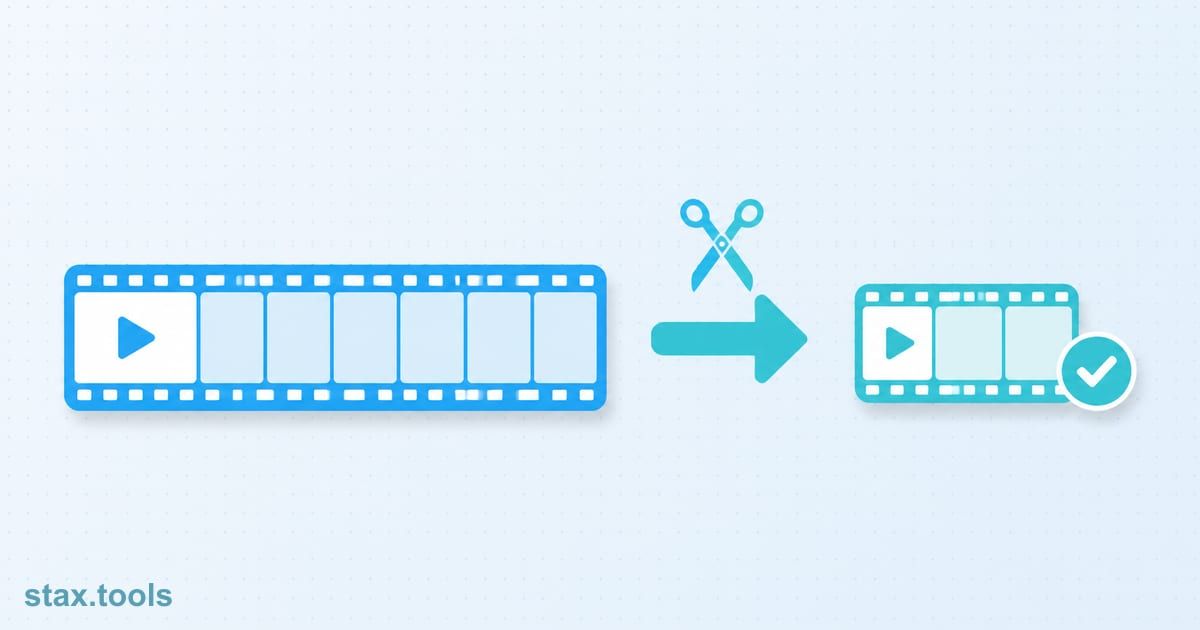
You have a ten-minute recording and you want thirty seconds of it. Nothing else. No filters, no captions, no timeline with six tracks. The question that decides how good the result looks is a narrow one: does the tool re-encode your video or not? Lossless video trimming is the name for cutting without re-encoding, and it is the reason a clip can come out in a couple of seconds with exactly the picture quality of the original. It also has one catch that surprises almost everyone the first time, which is that the cut does not always start where you pointed.
This guide compares the two ways our Video Trimmer cuts a clip, Fast and Precise, so you can pick the right one before you start. Everything runs in your browser tab, and the numbers below are calculations you can reproduce, not marketing.
Fast vs Precise at a glance
Here is the whole decision on one screen. Both modes run on the same page; the only difference is a drop-down labelled Mode.
| Fast mode | Precise mode | |
|---|---|---|
| What happens to the video data | Copied as it is, no re-encoding | Decoded and encoded again as H.264 |
| Picture quality | Unchanged from the original | A second generation of lossy compression (CRF 23) |
| Where the cut starts | At the keyframe at or before your start time | On the exact frame you chose |
| Speed | Quick, because nothing is encoded | Slower, because every frame is encoded |
| Output file type | Same as the input file's extension | MP4 |
| Audio | Copied | Re-encoded as AAC at 128 kbps |
| Works on every file | Usually; falls back to Precise if copying fails | Yes |
| Best for | Rough cuts, long recordings, archive copies | Frame-exact edits, cutting right after a scene change |
Two other options change the picture: Crop for social (9:16 vertical or 1:1 square) and Remove audio. Cropping always re-encodes, even if Fast is selected, because a copied stream cannot change the shape of the frame. Removing audio works in both modes.
What lossless video trimming actually means
Video files are not stored as a list of complete pictures. To keep files small, a codec stores a complete image every so often and, in between, only the differences from the frames around it. MDN's video codec guide describes these complete images as key frames, also called intra-frames or I-frames, which do not depend on any other frame, while the frames in between depend on the ones before them. Wikipedia's article on groups of pictures puts it the same way: an I-frame is a point where decoding can start, and each group of pictures begins with one.
That structure is why a lossless cut is possible and why it has a limit. Stream copy takes the stored data between two points and writes it into a new file without decoding it. FFmpeg's own documentation says stream copy passes packets through without decoding, filtering or re-encoding, which makes it fast and keeps the original quality. The same page warns that it can fail in some cases because the destination container may need information the source does not provide. Our trimmer handles that case: if copying a particular file fails, it re-encodes instead, so you still get a clip.
Filters cannot be applied while copying, because filters work on decoded pictures. That is exactly why the crop options force a re-encode.
Fast mode in depth: why the clip can start early
A frame between two keyframes cannot be shown on its own, because it is stored as a set of changes. A decoder has to start at a keyframe. So when you ask a stream-copy cut to begin at 3:07.6, the tool cannot begin mid-way through a group of pictures. FFmpeg's documentation says the -ss option, used as an input option, seeks to the closest seek point before the given position, and that with stream copy the extra stretch between that point and your requested time is kept rather than discarded. In plain terms, the clip starts early.
How early depends on how often the file has a keyframe. Phone and screen recordings differ, and so do files exported from editors, so the table below shows the spread. It assumes a regular keyframe every K seconds from the start of the file and a requested start of 3:07.6 (187.6 seconds). These figures are our own arithmetic, not measurements of a particular file.
| Keyframe every | Nearest keyframe before 3:07.6 | Clip starts early by |
|---|---|---|
| 1 second | 3:07.0 | 0.6 s |
| 2 seconds | 3:06.0 | 1.6 s |
| 5 seconds | 3:05.0 | 2.6 s |
| 10 seconds | 3:00.0 | 7.6 s |
The worst case for any start time is just under one keyframe interval. If your file has a keyframe every 10 seconds, the clip can open up to nearly 10 seconds before the point you chose. For a lecture or a match highlight that is often fine, since a little lead-in is harmless. For a cut that has to begin on a specific word or a specific goal it is not.
The Video Trimmer is upfront about this. The Fast option reads "no re-encode, keyframe-accurate", and the page says the cut can begin a second or more early depending on the file. If you play the result and the start is earlier than you wanted, that is the cause, and the cure is Precise mode.
What Fast mode gives you in return:
- Identical picture quality. Nothing is decoded, so nothing can be damaged. For footage you want to keep as an archive copy of a moment, this is the right choice.
- Speed. Copying data is much quicker than encoding it, although the exact time still depends on your device and the size of the file.
- Your original file type. A trim of a
.movcomes out as a.mov, a.mkvas a.mkv, so nothing downstream changes. - Audio untouched. The sound is copied too, unless you tick Remove audio.
Precise mode in depth: when the exact frame matters
Precise mode decodes the video from the nearest earlier keyframe, throws away the frames before your start time, and encodes everything from your exact start frame onward. The result is an H.264 MP4 with AAC audio at 128 kbps. The page uses CRF 23 with the veryfast encoder preset, and the output is not configurable beyond the options on the page.
The cost is the one you would expect. Lossy compression discards information every time it is applied. MDN notes that most codecs are lossy, so decoded video does not exactly match its source, and more compression means more loss. A single extra pass is often hard to notice on ordinary footage, but the result is not bit-identical to the original, and a clip that is trimmed, compressed and converted again across several tools picks up the losses each time. This is the practical reason to cut first and do everything else afterwards, or better, to do it in as few passes as you can.
Choose Precise when:
- The first or last frame is the point. A reaction shot, a goal, a spoken sentence that must not be clipped, or a transition you want to land right on a beat.
- You are cropping anyway. A 9:16 or 1:1 crop re-encodes in either mode, so you may as well have frame-exact timing at the same time.
- Fast mode produced a file that will not play properly in the app where you want to use it. Precise always writes a standard MP4.
- Your recording has long gaps between keyframes and Fast starts too early to be useful.
The break-even question: how big is the clip you end up with?
Trimming changes size as much as it changes length, because a file's size is, to a good approximation, its bitrate multiplied by its duration. For a clip of 30 seconds from a 10-minute recording at 8 Mbps, the clip is 30 MB, which is 5 percent of the 600 MB original. These are figures you can check yourself: megabytes equal megabits per second times seconds, divided by eight. The audio track adds a little on top.
| Video bitrate | 15 seconds | 30 seconds | 60 seconds |
|---|---|---|---|
| 4 Mbps | 7.5 MB | 15 MB | 30 MB |
| 8 Mbps | 15 MB | 30 MB | 60 MB |
| 16 Mbps | 30 MB | 60 MB | 120 MB |
In Fast mode the clip inherits the original bitrate, so these numbers are what to expect. In Precise mode the encoder picks its own bitrate for the target quality, so the result can come out larger or smaller than the source, depending on how the original was made. If a trimmed clip is still too big for where it is going, that is a separate step: the result screen has a button that sends the clip straight to the video compressor, with no need to select the file again.
Who should pick which
- You cut a long recording down to the useful part to keep or share. Fast. Check the first second of the result; if it starts a little early, that is normal.
- You are making a clip for a social post with a vertical or square crop. Crop for social with Precise, since the crop forces a re-encode anyway. Apps cap the length of status or story clips and have changed those limits several times, so check the limit in the app itself.
- You need a clip that begins on an exact word or frame. Precise.
- The clip is for a GIF. Trim first, with Remove audio ticked, then use the Make a GIF button to carry the clip across to the GIF maker. A shorter clip makes a far smaller GIF than the whole recording.
- The next step is a different format. Use the Convert this clip button to send it to the video converter. Trimming first means the converter has less to process.
- You want only the sound. The Extract audio button sends the clip to the MP4 to MP3 tool.
How to trim a clip, step by step
- Open the Video Trimmer and drop in a video. It accepts MP4, MOV, WebM, AVI and MKV, one file at a time. Your file is opened on your device, not uploaded.
- A player and a draggable bar appear. Play or scrub to the spot you want, then drag the two handles, or pause and click Set start and Set end. The keyboard shortcuts I and O do the same while the player is selected.
- Check the typed start and end boxes. They update as you drag and stay editable if you prefer exact numbers such as
90or1:30. The end time starts at the full length of the video, so you can change only the start if that is all you need. - Pick Fast or Precise from the Mode menu, add a crop or tick Remove audio if you want them, and press Trim video.
- The result plays inline so you can check the cut before you save it. Download it, or press one of the buttons beside the download link to carry the clip to the compressor, converter, GIF maker or audio extractor.
When this approach does not work
- A very large file on a phone. The work happens in your browser's memory. Long 4K recordings can be heavy for a phone and a laptop copes better.
- Unusual streams. Some files hold audio or data that the output container cannot copy. The tool then re-encodes automatically, so you get a clip, but it takes the Precise route.
- A result that will not play where you need it. Fast keeps the original file type and its quirks. If the app you are sending the clip to rejects it, trim again in Precise mode, which always writes a standard MP4.
- A start that is later than expected. Fast mode only moves your start earlier, never later. If the clip begins later than you wanted, check the typed start time.
None of this is a substitute for a full editor when you need titles, transitions or several clips in one timeline. For the single job of taking a good section out of a longer video, lossless video trimming does it without the quality penalty.
Sources and methodology
- FFmpeg documentation — stream copy passes packets through without decoding, filtering or re-encoding and may fail when the container needs information the source lacks;
-ssas an input option seeks to the closest point before the given position, and with stream copy the extra stretch is kept. - MDN, Web video codecs guide — key frames are complete images that do not depend on other frames; most codecs are lossy and more compression means more loss.
- Wikipedia, Group of pictures — I-frames are the points where decoding can start.
- Tool behaviour (Fast and Precise settings, crop and mute behaviour, fallback, supported types, the next-step buttons) was read from the Video Trimmer's code and page on 28 October 2026.
- The keyframe table assumes a regular keyframe interval from 0:00 and a requested start of 187.6 seconds; real files vary. The size table is megabytes = megabits per second × seconds ÷ 8, with 1 MB as 1,000,000 bytes and audio ignored.
Last reviewed: 2026-10-28. Keyframe spacing differs from file to file, so judge the first second of your own result.
Harshil writes about privacy-first tools, developer productivity, and the trade-offs between browser-based and uploaded utilities.

Harshil
Developer & Founder, stax.tools
Harshil is the developer behind stax.tools, building privacy-first tools that run entirely in your browser.
More by Harshil →Tools mentioned in this article
- Video Trimmer
Cut a clip out of any video by start and end time — instant stream-copy or frame-accurate modes, all in-browser.
- Video Compressor
Compress MP4, MOV, and WebM videos in your browser — no upload, no watermark, no size limit.
- Video Converter
Convert video between MP4, WebM, MOV, and AVI entirely on your device — files never leave your browser.
- Video to GIF Converter
Turn any video clip into a high-quality GIF with palette optimization — pick start time, length, size, and frame rate.
Related reading
 Compress a Video Without Uploading It (2026 Guide)Compress video without uploading it: shrink a video by 50–80% for WhatsApp, email or the web, right in your browser. Step-by-step guide with presets.7 min read
 Does an Online Tool Upload Your File? A 2-Minute TestDoes an online tool upload your file? Use the browser's Network tab and an offline test to check any video, PDF or image tool in two minutes.6 min read
 Resistor Color Code Chart: How to Read 4, 5 and 6 BandsResistor color code chart with worked examples: read 4, 5 and 6-band resistors, find which end to start from, and decode 8.2k vs 82k correctly.9 min read
 Diff Checker Guide: How It Works and 6 Use CasesHow diff algorithms work, unified vs split diff formats, why character-level diffs matter and practical diff checker uses beyond version control.6 min read
Found this useful?
Browse 300+ free privacy-first tools — no login, no uploads, instant results.