
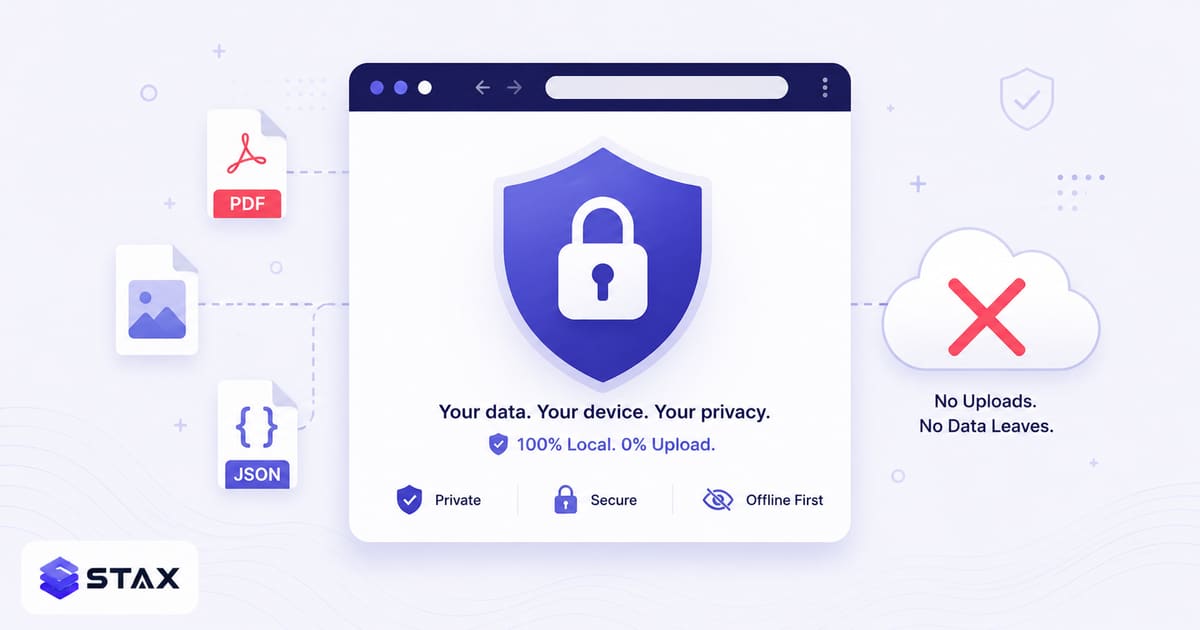
Most popular online tools follow the same model: you upload a file, their server processes it, you download the result. For random images or public documents, that's a reasonable trade-off. For anything sensitive — contracts, source code, financial records, medical documents, API keys in JSON files — the upload is an unnecessary risk.
Browser technology has caught up. WebAssembly lets C/C++ libraries (the same ones powering server-side tools) run locally in your browser tab. Web Workers keep the UI responsive during heavy processing. The Canvas API handles image operations. PDF-lib and PDF.js manage PDF manipulation. The result: a class of tools that do everything client-side, with no server involved at all.
Here are 10 categories where browser-based tools are now as capable as their cloud counterparts — with links to free, upload-free alternatives.
1. PDF Compression → Stax PDF Compressor
Cloud tools process your file on their servers: for example iLovePDF, Adobe Acrobat's online tools and most Smallpdf tools (iLovePDF's terms say files are deleted within two hours of processing, Smallpdf says it deletes files after an hour, and Adobe says its online tools delete files automatically).
What Stax does instead: Re-saves the PDF with PDF-lib and, if you ask for a target size it has not reached, redraws the pages as images at a lower resolution until the file fits (the text then becomes part of the picture). Everything runs in your browser, so zero bytes are uploaded.
Best for: Contracts, financial PDFs, confidential reports. Not for: Maximum compression of image-heavy PDFs (server-side Ghostscript can be more aggressive). See the technical breakdown in how we compress PDFs without uploading.
2. Image Compression → Stax Image Compressor
Cloud tools upload your file to: TinyPNG, for example (its homepage says uploads are kept for a maximum of 48 hours, then deleted). Squoosh, by contrast, says it does all its work locally and images never leave your device.
What Stax does instead: Uses your browser's built-in image encoder: JPEG and WebP to a quality or an exact size in KB, and PNG by reducing its dimensions or converting it. One image at a time.
Best for: Product images, design mockups, screenshots with UI elements. For flat graphics and PNG screenshots, a dedicated service such as TinyPNG may save more.
3. JSON Formatting & Validation → Stax JSON Formatter
Some online formatters send your data to a server: check each tool's own description and the Network tab. JSONFormatter.org says its validation happens in the browser; JSONLint's homepage does not say either way.
What Stax does instead: Runs JSON parsing and formatting in your browser, with tree view, minify and format modes. Very large files depend on your device's memory.
Best for: JSON containing API keys, customer records, internal configuration. The data literally never leaves your browser tab. Read more on how we format JSON without uploading it.
4. Image Format Conversion → Stax Image Format Converter
Cloud converters process your file on their servers: Convertio and CloudConvert, for example, each say so in their privacy pages (Convertio says output files are deleted after 24 hours; CloudConvert says at the latest after 24 hours).
What Stax does instead: Uses the HTML5 Canvas API and File API to convert between JPG, PNG, and WebP entirely client-side. Conversion is instant — no round-trip to a server. See how we convert images to WebP without uploading for the technical details. For iPhone photos, the HEIC to JPG Converter does the same job locally, so personal photos never pass through a converter site's servers.
5. QR Code Generation → Stax QR Code Generator
Some cloud tools send your URL to a server: some QR generators log the URL you encode, for example for analytics or "dynamic QR" tracking features.
What Stax does instead: Generates QR codes using the qrcode.js library in-browser. Your URL is never transmitted. Download as PNG or SVG.
Best for: Internal URLs, private customer links, or any URL you don't want logged. Our QR code generator guide covers static vs dynamic codes and when each makes sense.
6. Password Generation → Stax Password Generator
Some cloud password generators work on the server: the password then travels over the network and was generated on a machine you don't control.
What Stax does instead: Uses window.crypto.getRandomValues() — the browser's cryptographically secure RNG. The password is generated locally and never transmitted. This is the correct way to generate passwords in a browser. For guidance on password length and character sets, see our password generator guide.
7. Hash Generation (SHA-256, MD5…) → Stax Hash Generator
Some cloud tools send your data to a server: some online hash checkers POST your input to a server for hashing.
What Stax does instead: Uses the Web Crypto API (crypto.subtle.digest) — a native browser API for SHA-1, SHA-256, SHA-384, SHA-512. MD5 runs via a pure-JS implementation. Your input stays local.
Best for: Verifying file integrity, hashing sensitive strings without transmitting them. If you're unsure which algorithm to use, our SHA-256 vs MD5 guide breaks down the difference.
8. Base64 Encoding/Decoding → Stax Base64 Encoder
Some cloud tools send your data to a server: some online encoders POST your input.
What Stax does instead: Uses btoa() / atob() — built-in browser functions. This is a zero-dependency, purely local operation. For file-to-Base64 (image embedding in CSS or HTML), uses the FileReader API.
9. PDF Merging → Stax PDF Merger
Cloud tools process your files on their servers: iLovePDF, most Smallpdf tools and similar services.
What Stax does instead: PDF-lib's copyPages() function reads both PDFs into ArrayBuffers in browser memory and writes a merged output. No server contact. Drag to reorder pages before merging. See how we merge PDFs without uploading for the full walkthrough.
10. Regex Testing → Stax Regex Tester
How the popular tools handle it: This is the mildest case on the list. regex101, the best-known tester, documents that matching, replacement and debugging run locally in your browser and that test strings are not uploaded for those operations. Only saving, publishing and API requests send your pattern and text to its service, and a shared link can be read by anyone who has it. So the privacy difference for ordinary testing is small; the habit to avoid is saving or sharing a workspace that holds real personal data. See regex101's privacy documentation.
What Stax does instead: Uses JavaScript's native RegExp, which runs in your browser's JS engine, and has no save or share feature, so there is nothing to send. It tests JavaScript regular expressions only (flags g, i, m and s). For other engines, a debugger or shareable links, regex101 is the better tool; see the comparison.
How to verify a tool is actually client-side
Before trusting any tool's "no upload" claim, verify it yourself:
- Open DevTools → Network tab (F12 → Network)
- Clear the log
- Perform the operation (format JSON, compress PDF, etc.)
- Filter for XHR / Fetch requests
- If no requests appear with your file data, the tool is genuinely client-side
This takes 30 seconds and gives you certainty rather than relying on a privacy policy. Network-tab auditing is also a useful habit when evaluating any new developer tool before integrating it into a workflow that handles sensitive data.
Privacy policy red flags in online tools
Even when you verify a tool sends no network requests during the operation, check one more thing: the privacy policy. Common red flags:
- A long or unstated retention period — some services say they may keep uploaded files for days or weeks, so the retention line matters. Stated periods differ a lot: iLovePDF says two hours after processing, Smallpdf says an hour for most tools, TinyWow says one hour after processing, TinyPNG says a maximum of 48 hours, and CloudConvert and Convertio say 24 hours (each from its own pages, checked 15 October 2026). Always read the current policy.
- "Files are used to improve our service" — training-data language. Your confidential contract could become a data point in a model.
- "Third-party processors" — many online tools route your file through external OCR or compression services, meaning it passes through infrastructure you never consented to.
- No privacy policy at all — common with smaller tools. No policy means no commitment.
Browser-based tools sidestep all of this: there's nothing to retain, nothing to process externally, and nothing to train a model with — because the file never leaves your device. The Network tab check described above confirms this empirically, regardless of what the privacy policy says.
The trade-off
Browser-based tools aren't universally better. Server-side tools win on:
- Maximum compression (server Ghostscript can achieve higher ratios than browser PDF-lib)
- Format breadth (converting PDF to Word, heavy video transcoding, OCR on scanned documents) — though basic video compression now works client-side too, see how to compress a video without uploading it
- Speed on very large files (server CPU isn't rate-limited by browser sandboxing)
For sensitive data, the privacy benefit of client-side processing outweighs these trade-offs. For non-sensitive public content where maximum output quality matters, cloud tools are still the right choice.
All tools in this list are free and available at stax.tools — no signup, no login.
5 more categories where browser tools are catching up
The original list covers the most common use cases. Here are five more categories where client-side processing has recently become practical.
11. SQL Formatting → Stax SQL Formatter
Some online SQL formatters send your SQL to a server: check each tool's own description and the Network tab.
What Stax does instead: Parses and reformats SQL using a JavaScript SQL parser running in your browser. Supports MySQL, PostgreSQL, SQLite, SQL Server, and BigQuery syntax. Your table names, schema details, and query logic — including WHERE clause data — stay local.
Best for: Production SQL with sensitive table names, PII filters, or internal schema structure. Never paste database queries containing real data (even in WHERE clauses) into tools that POST to a server.
12. CSS Code Generation → Stax CSS Generators
CSS gradient generators, box shadow generators, and flexbox playgrounds that "preview live" often do so entirely in-browser because CSS computation is inherently a browser function. These are safe by default — the CSS property values you type are client-side DOM manipulation, not server requests.
13. JWT Decoding → Stax JWT Decoder
JWTs (JSON Web Tokens) are base64-encoded structures. Decoding them reveals claims — user IDs, roles, expiry times, scopes. Some JWT tools send the token to a server for "verification" (which requires the secret key anyway and is useless without it). Client-side decoding is both faster and privacy-preserving.
14. Diff Checking → Stax Diff Checker
Text comparison tools that diff code, config files, or documents traditionally ran server-side. Modern diff libraries (diff.js, jsdiff) run entirely in the browser at full speed for files up to several MB. Your source code and document content stays local. Our diff checker guide for code review walks through a real workflow.
15. Timestamp and Date Conversion → Stax Timestamp Converter
Unix timestamp conversion, timezone conversion, and date arithmetic are pure computation — no server needed, ever. Yet many date/time tools are server-rendered unnecessarily. Client-side is correct for all of these.
Building your own privacy-safe tool stack
If you're a developer building internal tools for your team, the same WebAssembly stack that powers these browser tools is available in Node.js for server-side use where needed. The browser-first approach makes sense for user-facing tools; server-side is appropriate for batch processing pipelines, automation, and tasks requiring persistent storage.
For a comprehensive audit of which tools in your current workflow upload data unnecessarily, a quick Network-tab scan during each operation is the most reliable method. Most surprises come from tools that claim to be client-side but quietly POST data for analytics or "improvement" purposes.
The full catalog of 300+ client-side tools is at stax.tools — browser-based, no signup, no upload required.
Frequently asked questions
Are client-side tools slower than server-side tools? For most operations under 50 MB — formatting, hashing, compression, conversion — the difference is imperceptible. Modern browser JavaScript engines and WebAssembly run at near-native speeds. For very large files (200 MB+), server-side tools have a hardware advantage because servers have more RAM and dedicated CPUs. But for everyday file sizes, client-side is typically as fast or faster because it skips the upload round-trip entirely — processing starts the moment you select your file.
What if I'm on a slow internet connection? Client-side tools are ideal for slow connections. You download the tool's JavaScript once (cached by your browser after the first visit), and every subsequent operation runs locally — no upload, no download of processed files, just local computation. A slow connection makes cloud tools painful and client-side tools completely unaffected.
Is WebAssembly safe to run in my browser? WebAssembly runs in the same sandboxed environment as JavaScript — it cannot access your filesystem, network, or system beyond what the browser explicitly permits. A WebAssembly PDF library can only touch what you explicitly hand it via the File API. It has no more system access than any other browser tab. The sandbox is enforced by the browser itself, not the tool developer — which is why it's trustworthy regardless of who wrote the underlying library.

Harshil
Developer & Founder, stax.tools
Harshil is the developer behind stax.tools, building privacy-first tools that run entirely in your browser.
More by Harshil →Tools mentioned in this article
- PDF Compressor
Reduce PDF file size using lossless object-stream compression and metadata stripping. No quality loss.
- Image Compressor
Compress JPEG, PNG, and WebP images with a quality slider. See before/after file size savings. No upload — all in-browser.
- JSON Formatter
Format, beautify, minify, and validate JSON in your browser
- QR Code Generator
Generate QR codes for URLs, text, Wi-Fi, and more. Download as PNG.
Related reading
 Does an Online Tool Upload Your File? A 2-Minute TestDoes an online tool upload your file? Use the browser's Network tab and an offline test to check any video, PDF or image tool in two minutes.6 min read
 Compress a Video Without Uploading It (2026 Guide)Compress video without uploading it: shrink a video by 50–80% for WhatsApp, email or the web, right in your browser. Step-by-step guide with presets.7 min read
 How to Generate a Strong Password (and Skip Memorizing)How to create a strong password: how entropy works, why 'P@ssw0rd' loses to 'correct-horse-battery-staple', and using a private in-browser generator.11 min read
 Create a QR Code for a URL, WiFi, Contact or WhatsAppCreate a QR code for URLs, WiFi, contacts, WhatsApp links or text in your browser. No signup, no upload, no server; everything encodes locally.12 min read
Found this useful?
Browse 300+ free privacy-first tools — no login, no uploads, instant results.