
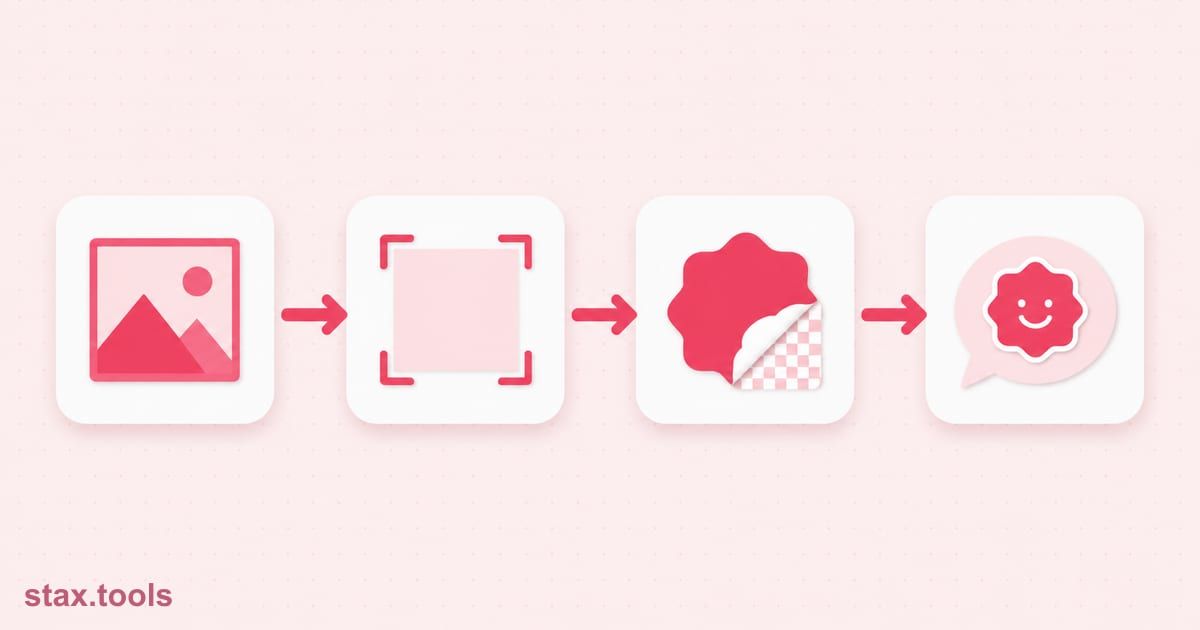
By the end of this guide you will know how to make WhatsApp stickers that pass WhatsApp's published file rules: how to turn a photo, a GIF or a short video clip into a 512 x 512 WebP file, how to get it under the byte limit, how to prepare a tray icon, and how to bundle a pack. You will also know the one thing no website can do for you, which is to install the pack on your phone.
First, an honest note about when you do not need any of this. WhatsApp has its own sticker maker. WhatsApp's blog, in a post dated 14 August 2024, describes a Custom Sticker Maker that turns photos into stickers and lets you edit them, rolling out on Android after launching on iOS, with finished stickers saved to your sticker tray. For a handful of personal stickers made on the phone, use that. The file-based route below is for people who want control over the files themselves: a branded set for a shop, a pack for a sticker app, or many stickers made on a computer from a folder of pictures.
Before you make WhatsApp stickers: the rules
The numbers come from the README files in WhatsApp's own sticker repository on GitHub, one for Android and one for iOS. Our WhatsApp Sticker Maker is built to these figures and shows a pass or fail line for each.
| Rule | Still sticker | Animated sticker |
|---|---|---|
| Image size | Exactly 512 x 512 pixels | Exactly 512 x 512 pixels |
| Format | WebP with a transparent background (iOS also accepts PNG for a still) | Animated WebP |
| File size | 100 KB or less | 500 KB or less |
| Duration | Not applicable | 10 seconds or less in total |
| Shortest frame | Not applicable | 8 ms |
| Pack | 3 to 30 stickers, all still or all animated, never a mix | Same |
| Tray icon | 96 x 96 pixels, static, 50 KB or less | Same |
The README also recommends an 8 pixel white outline around each sticker, because stickers are shown on light, dark and patterned backgrounds, and it says that WhatsApp ends an animation on its first frame after looping, so the first frame should be the complete sticker. The README does not say whether "KB" means 1,000 or 1,024 bytes, so a file that lands very close to the limit deserves a second look. Our tool counts 1 KB as 1,024 bytes.
A rough feel for the still limit: 100 KB is 102,400 bytes, and a 512 x 512 sticker has 262,144 pixels, so you have about 0.39 bytes per pixel to spend. That is generous for a cartoon with flat colours and tight for a photograph with fine texture, which is why the picture you start with matters more than any setting.
Step 1: Decide whether the pack is still or animated
A pack is all still or all animated, so decide before you collect pictures. Still stickers are easier to make and to keep under the limit. Animated ones are more fun but cost far more bytes. In the tool, the choice is a pair of options at the top, Still stickers and Animated stickers, and changing it resets any stickers you have already made, because they were built to different rules.
A single still picture cannot be turned into an animated sticker, and a still pack cannot hold a moving one. If a pack mixes the two, WhatsApp will not take it.
Step 2: Add your pictures, GIFs or clips
Open the tool and drop your files in. Each file becomes one sticker, and you can add up to 30. It reads ordinary pictures, GIFs and short video clips, and your files are processed on your own device, not uploaded. There is no account and no watermark.
Some practical advice before you start:
- Choose pictures with a clear subject. A face or object against a plain background survives the shrink to 512 pixels far better than a crowded scene.
- Start with big pictures, not tiny ones. A 4000 x 3000 phone photo has about 46 times the pixels of a sticker, so there is plenty to work with. A 200 pixel screenshot gets stretched and looks soft.
- Trim clips first. If your source is a long video, cut the few seconds you want with the Video Trimmer and bring that clip here. An animated sticker can be at most 10 seconds anyway.
- Avoid animated WebP files as input. The video engine in the tool cannot read an animated WebP, and says so. Save it as a GIF or an MP4 first, or choose Still stickers to use its first frame.
Step 3: Set how each picture fills the square
Every picture has to fit a square, and the tool offers two ways to do it.
- Whole picture, transparent space around it (the default) keeps everything in view and fills the leftover area with transparency. Use it for logos and anything with an edge you do not want cut.
- Fill the square, crop the edges crops to fill all 512 x 512 pixels. Use it for faces and close-ups.
You can add empty space around the picture, from 0 to 200 pixels. A little margin keeps the subject away from the edge of the square, which is useful when the sticker will sit on a busy background.
For still stickers there is also a White outline around the sticker option, whose width defaults to the README's recommended 8 pixels. It is for still stickers only.
If your picture has a flat background, such as white or a green screen, turn on Make one colour transparent, pick the colour and set how close a pixel must be to it. This is a colour cut-out, not automatic background removal. Every pixel near that colour becomes transparent, including pixels inside the picture, so a white shirt on a white background loses its shirt. Pictures that already have transparency, such as a PNG or a transparent GIF, keep it.
Step 4: For animated stickers, set the window and the frame rate
Animated stickers have three extra settings: where in the clip to start, how long the sticker should run (up to 10 seconds), and frames per second. The tool offers 8, 10, 12, 15, 20 and 25.
Frame rate is the lever that matters most for file size, because the 500 KB budget is divided among all the frames. This table is simple arithmetic on the README's figures: 500 KB is 512,000 bytes, divided by the number of frames. Real encoders do not spend bytes evenly, since a static background is cheap and a moving subject is expensive, so treat these as averages.
| Frames per second | Frames in 10 s | Average per frame (10 s) | Frames in 3 s | Average per frame (3 s) |
|---|---|---|---|---|
| 8 | 80 | 6.25 KB | 24 | 20.8 KB |
| 12 | 120 | 4.17 KB | 36 | 13.9 KB |
| 15 | 150 | 3.33 KB | 45 | 11.1 KB |
| 20 | 200 | 2.50 KB | 60 | 8.3 KB |
| 25 | 250 | 2.00 KB | 75 | 6.7 KB |
The lesson is that a three-second loop at 15 frames per second has more than three times the budget per frame of a ten-second clip at the same rate. If an animated sticker will not fit, shorten it before you do anything else. The tool's default is 15 frames per second.
Step 5: Make the stickers and read the checks
Press Make stickers. The tool fits each picture into the square, writes it as WebP, lowers the quality until the file is under the byte limit if it can, and then reads the finished file back and checks it. For animated stickers it lowers quality first and then the frame rate. The first animated sticker you make also downloads a video engine of about 31 MB, once.
Each sticker shows its size in KB and a list of pass, note or fail lines:
- is it a readable WebP file,
- is it exactly 512 x 512 pixels,
- is the file under the byte limit,
- is it still or animated as the pack requires,
- for animations, the length in seconds and the shortest frame,
- does it have a transparent area. A sticker with no transparency is shown as a note, not a failure, because a solid square is allowed but looks unusual in a chat.
You can download any sticker on its own as a .webp file.
Step 6: Fix anything that fails
The tool only ever lowers quality and frame rate. It never changes the 512 x 512 size or the part of the clip you chose. If a sticker still cannot fit, it says so and shows the smallest file it managed, marked as failed. These fixes work in roughly this order:
- Simplify the picture. Fewer colours and a flat background compress far better than a textured photo.
- Shorten the clip. Fewer frames means a bigger share of the budget for each one.
- Lower the frame rate one step at a time, from 15 to 12, then to 10.
- Crop tighter so the subject fills more of the square and fine detail is not spread over empty space.
- Reduce the number of moving parts. A subject that moves against a still background costs far less than a camera pan.
If the browser runs out of memory on a long or very large clip, the tool says so and restarts its engine. Use a shorter or smaller clip and press the button again.
If you need to shrink an ordinary picture before it goes in, the image compressor can bring it down to a chosen size. You can also make a GIF from a video with the video to GIF tool and add that.
Step 7: Pick the tray icon and download the pack
When at least three stickers pass every check, the Your pack box lets you pick which one becomes the tray icon. The icon is written as a 96 x 96 PNG from that sticker, using the first frame for an animated one, and checked against the 50 KB limit. Name the pack and press Download the pack as a ZIP. The ZIP holds a folder with sticker-01.webp, sticker-02.webp and so on, plus tray.png. The ZIP button stays disabled until you have between 3 and 30 passing stickers.
Step 8: Get the pack into WhatsApp
This is the step our tool cannot do, and it is worth being clear about why. According to the README, a pack reaches WhatsApp through a sticker app, not from a file on a web page. The app supplies the sticker files, the tray icon and details about the pack, then asks WhatsApp to add it, and the user confirms in a WhatsApp prompt. On Android, the README describes this as an intent sent to WhatsApp by the app. On iOS, the app places the data on the pasteboard and opens WhatsApp through a URL scheme. The README also asks for an emoji entry on each sticker, with up to three emoji, and a name and a publisher for each pack. Those are details the sticker app collects, and our tool does not write them.
So the finished ZIP is the raw material. Feed it to a sticker-maker app that imports files, or to your own app if you are building one. Those apps may apply rules of their own, and WhatsApp may still decline a pack. We are not affiliated with WhatsApp.
When this approach does not work
- You want a quick sticker from one photo. WhatsApp's own Custom Sticker Maker is faster for that.
- You need automatic background removal. The colour cut-out is not that. Remove the background in an image editor first, save a transparent PNG and use that.
- A busy, long, high-motion clip. It may never fit in 500 KB at 512 x 512 pixels. Choose a shorter window.
- Another app. Telegram and LINE have their own sticker rules. This site has a separate Telegram sticker maker for Telegram's requirements.
Stickers are one of the few places where file size rules decide whether your idea works at all. Know the numbers before you design, and the rest is routine.
Sources and methodology
- WhatsApp/stickers, Android README — 512 x 512 pixels, WebP with a transparent background, 100 KB still and 500 KB animated limits, 10 seconds and 8 ms frame rules, 96 x 96 and 50 KB tray icon, 3 to 30 stickers per pack, never a mix of still and animated, the recommended 8 pixel white outline, first-frame advice, emoji and pack details, and the intent-based way a sticker app adds a pack. Read 28 October 2026.
- WhatsApp/stickers, iOS README — iOS accepts PNG or WebP for a still sticker and WebP for animated ones; the pack reaches WhatsApp through the pasteboard. Read 28 October 2026.
- WhatsApp Blog, Express Yourself with More Stickers — the Custom Sticker Maker, dated 14 August 2024.
- Tool behaviour (options, checks, ZIP contents, what the tool cannot do) was read from the WhatsApp Sticker Maker's code and page on 28 October 2026.
- Calculations: 100 KB is 102,400 bytes, divided by 262,144 pixels is 0.39 bytes per pixel; 500 KB is 512,000 bytes divided by the frame count gives the per-frame averages; a 4000 x 3000 photo is 12,000,000 pixels, about 45.8 times a 512 x 512 sticker.
Last reviewed: 2026-10-28. WhatsApp can change these rules, so check the repository if a pack is rejected.
Harshil writes about privacy-first tools, developer productivity, and the trade-offs between browser-based and uploaded utilities.

Harshil
Developer & Founder, stax.tools
Harshil is the developer behind stax.tools, building privacy-first tools that run entirely in your browser.
More by Harshil →Tools mentioned in this article
- WhatsApp Sticker Maker
Make 512 x 512 WebP sticker files, checked against WhatsApp's published size rules, with a tray icon and a ZIP, in your browser.
- Telegram Sticker Maker
Make a Telegram video sticker (512 px WebM, VP9), a picture sticker (512 px PNG or WebP) or a 100 x 100 custom emoji from your own file in your browser, then check it against Telegram's rules.
- Video to GIF Converter
Turn any video clip into a high-quality GIF with palette optimization — pick start time, length, size, and frame rate.
- Image Compressor
Compress JPEG, PNG, and WebP images with a quality slider. See before/after file size savings. No upload — all in-browser.
Related reading
 Lossless Video Trimming: Fast Cut vs Precise CutLossless video trimming copies your footage without re-encoding, but cuts snap to keyframes. See when to pick Fast or Precise mode, with real numbers.10 min read
 Does an Online Tool Upload Your File? A 2-Minute TestDoes an online tool upload your file? Use the browser's Network tab and an offline test to check any video, PDF or image tool in two minutes.6 min read
 Compress a Video Without Uploading It (2026 Guide)Compress video without uploading it: shrink a video by 50–80% for WhatsApp, email or the web, right in your browser. Step-by-step guide with presets.7 min read
 Send a WhatsApp Message Without Saving the Number (2026)WhatsApp without saving number: three reliable ways to message someone without adding them as a contact, using wa.me links, QR codes and click-to-chat buttons.8 min read
Found this useful?
Browse 300+ free privacy-first tools — no login, no uploads, instant results.