
Git Rebase vs Merge: 8 Questions That Actually Settle the Debate
When to merge, when to rebase, when interactive rebase is the right tool, and why 'never rebase public branches' is the rule everyone cites but few actually understand.

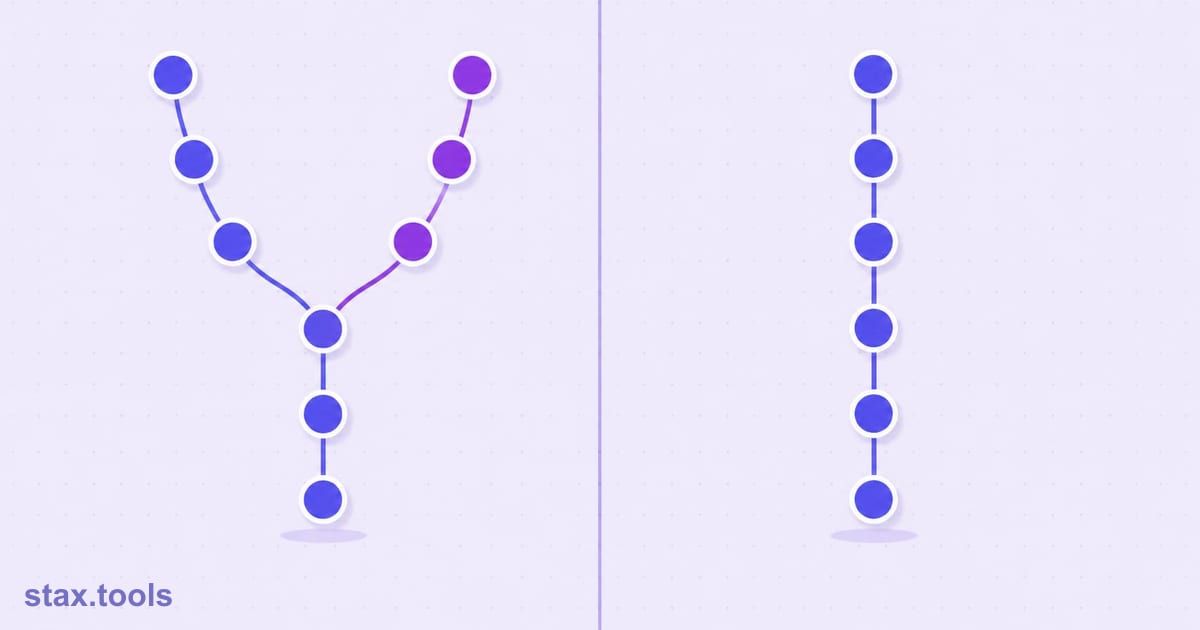
Most teams have an unspoken git religion — either "we always merge" or "we always rebase" — enforced by whoever set up the repo years ago. The rule is followed; the reason is unknown. Both commands integrate changes from one branch into another. The difference is in the history they produce and the workflow they enable.
Eight questions that actually settle it.
Q1: What does merge actually do?
git merge feature (run from main) takes the tip of feature and the tip of main and creates a new merge commit — a commit with two parents. Every original commit on both branches is preserved exactly as it was, with its original timestamp and SHA.
Before:
main:    A -- B -- C
                \
feature:         D -- E

After git merge feature (from main):
main:    A -- B -- C -- M
                \     /
feature:         D -- E
M is the merge commit. The history is a directed acyclic graph — you can see the branch point and the merge point. Both paths remain visible forever.
Q2: What does rebase actually do?
git rebase main (run from feature) takes the commits on your current branch and replays them on top of the target branch — one by one — creating brand-new commits with new SHA hashes. The original commits become unreachable and will eventually be garbage-collected.
Before:
main:    A -- B -- C
                \
feature:         D -- E

After git rebase main (from feature):
main:    A -- B -- C
                    \
feature:             D' -- E'
D' and E' are new commits. Same diff, same commit message, same author — but different parent SHA, therefore different commit SHA. The branch now appears to have started from C, not B.
Q3: Why does the SHA change during rebase?
A commit's SHA is a cryptographic hash of its content, author, timestamp, and — critically — its parent commit's SHA. When rebase changes the parent, the hash changes even if the diff is byte-for-byte identical. This is why rebased commits are technically new objects, and why force-pushing a rebased branch rewrites the remote history.
Q4: When should I use merge?
Use merge when:
- You are integrating a completed feature branch into a shared branch (
main,develop). The merge commit documents exactly when and what was integrated. - Your team values a complete record — auditors, post-mortems, and
git bisectall benefit from seeing which branches introduced which changes. - The branch was developed over multiple sessions and the fork-and-join topology itself carries meaning.
- You're integrating changes in either direction on a protected branch — merge is always safe on shared branches.
Merge is non-destructive. It never rewrites history. It never breaks another developer's local repo. This is why it's the default and why many teams use it exclusively.
Q5: When should I use rebase?
Use rebase when:
- You are on a local feature branch and you want to incorporate recent changes from
mainbefore opening a pull request. A rebase here gives you a linear diff againstmain— the PR shows only your changes, not a history of bringing in other people's work. - You want to avoid the noise of a "Merge branch 'main' into feature-xyz" commit that contributes nothing meaningful to the log.
- You are about to open a PR and want your commit history clean before review (use interactive rebase for this — covered below).
# Bring feature up to date with main before opening PR
git fetch origin
git rebase origin/main
# Resolve any conflicts, then:
git push --force-with-lease
The keyword is local. Rebase is safest on commits that only exist on your machine.
Q6: What is "never rebase public branches" and why does it matter?
This rule exists because of what happens when two people have diverged histories.
When you rebase, you replace commits with new ones that have new SHAs. If another developer already has the original commits in their local history and you push the rebased version to the remote, their history and the remote's history are now incompatible. A plain git pull will produce a messy merge. A git pull --rebase may surface conflicts. If they push without noticing, they can reintroduce the old commits.
The rule: Never rebase any commit that has been pushed to a remote that other people are pulling from.
The exception: if you are the only person working on a feature branch and you have pushed commits solely for backup purposes, you can rebase and follow up with git push --force-with-lease.
--force-with-lease is the safer version of --force. It refuses to overwrite the remote if someone else has pushed to that branch since your last fetch — preventing you from accidentally wiping a colleague's commits.
git push --force-with-lease origin feature/my-branch
# Fails safely if someone else pushed since your last fetch
Q7: What is interactive rebase and when is it the right tool?
git rebase -i HEAD~n opens an editor listing the last n commits with commands you can apply to each:
pick a1b2c3 Add user authentication
pick d4e5f6 fix typo
pick g7h8i9 WIP: email validation
pick j0k1l2 more email validation
pick m3n4o5 email validation done for real this time
pick p6q7r8 add unit tests
You rewrite that to:
pick a1b2c3 Add user authentication
fixup d4e5f6 fix typo
squash g7h8i9 WIP: email validation
squash j0k1l2 more email validation
reword m3n4o5 email validation done for real this time
pick p6q7r8 add unit tests
Result: a clean two-commit history — "Add user authentication" and "Add email validation with unit tests" — instead of six commits showing your work-in-progress journey.
The commands:
pick— keep the commit as-issquash(s) — combine into the previous commit, prompting for a new messagefixup(f) — squash silently, discard the messagereword(r) — keep the diff, edit the messagedrop(d) — delete the commit entirely- Reorder lines to change commit order
Interactive rebase is best used just before opening a PR — on local commits only, before pushing. It produces cleaner review history, easier cherry-picks, and more useful git blame output.
Q8: Merge, squash merge, or rebase-and-merge for pull requests?
GitHub, GitLab, and Bitbucket offer three merge strategies on the PR merge button. The choice affects what the main history looks like:
| Strategy | What appears in main | Best for |
|---|---|---|
| Merge commit | All PR commits + one merge commit | Full traceability, teams that need branch history |
| Squash and merge | One commit per PR | Clean linear history, each PR = one atomic change |
| Rebase and merge | All PR commits in-line, no merge commit | Linear history with full commit granularity |
Most open-source projects use squash and merge — one commit per PR, the commit message is the PR title, easy to revert an entire feature. Most regulated environments use merge commits for audit trails. Rebase-and-merge is popular in teams that want linear history without losing individual commit granularity.
The wrong answer is no policy — mixed strategies produce a history that is impossible to read or git bisect through.
For quick syntax reference on other Git commands beyond rebase and merge, keep the Stax Git cheat sheet handy.
Common mistakes
Rebasing after opening a PR. Once reviewers have left comments tied to specific commit SHAs, rebasing rewrites those SHAs and orphans the comments. Squash your commits before opening the PR, not after.
Using git pull --rebase without understanding the implications. This rebases your local commits on top of the fetched remote commits. It's a valid workflow and cleaner than a merge pull, but it rewrites your local commit SHAs. If you've already pushed those commits to a remote, you'll need to force-push.
Forgetting to pass --rebase during conflict resolution mid-rebase. After resolving a conflict during git rebase, you need git rebase --continue — not git commit. Running git commit creates a new commit instead of continuing the replay, resulting in duplicate commits.
Use the Stax Diff Checker to inspect changes between file states when resolving rebase conflicts. For a deeper look at diff algorithms and unified diff format, see our diff checker guide.
By Harshil Shah, developer and founder at Stax Tools.
Sources & methodology
- Git Documentation — git-merge reference and git-rebase reference, git-scm.com/docs
- Pro Git (Scott Chacon & Ben Straub, 2nd edition) — Chapter 3.6 "Rebasing", available at git-scm.com/book
- GitHub Docs — About merge methods on GitHub
Harshil
Developer & Founder, stax.tools
Harshil is the developer behind stax.tools, building privacy-first tools that run entirely in your browser.
More by Harshil →Tools mentioned in this article
Related reading
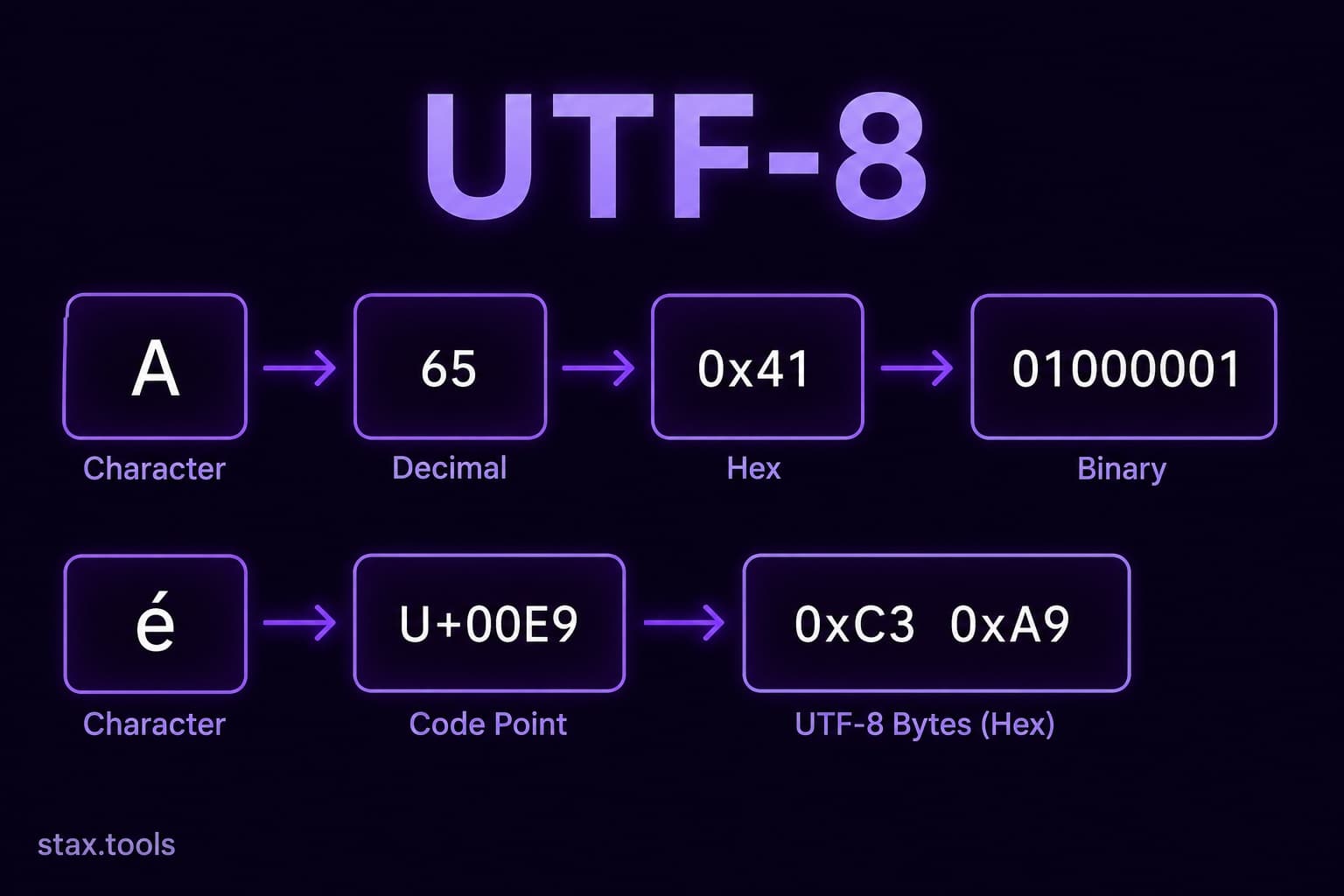 UTF-8, Unicode, and Character Encoding: What Every Developer Needs to KnowWhy mojibake happens, how Unicode code points map to UTF-8 bytes, the difference between ASCII, Unicode, and UTF-8, and why 'just use UTF-8 everywhere' is correct advice but still requires understanding.5 min read
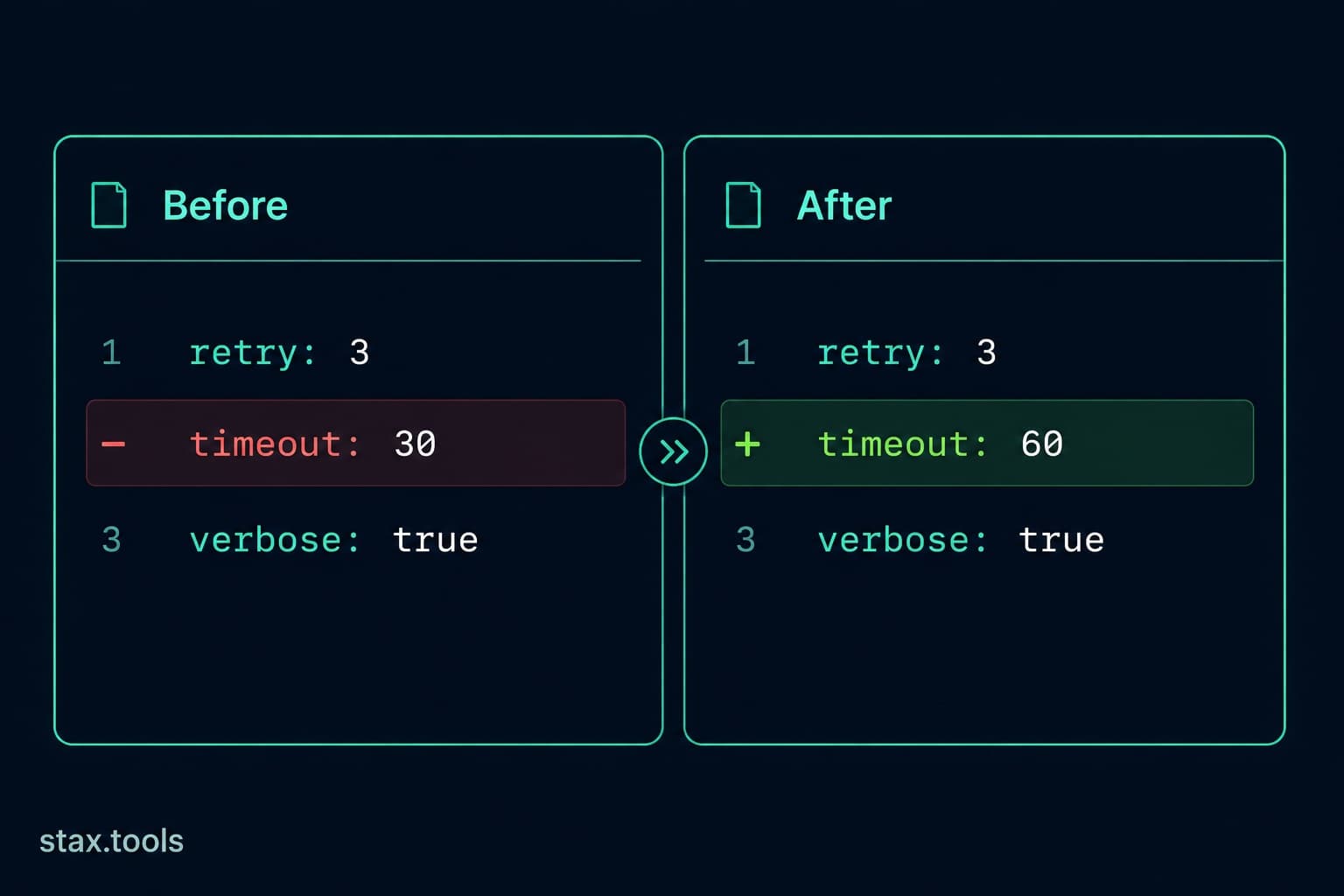 Diff Checker: What It Is, How It Works, and 6 Use Cases Beyond Code ReviewA side-by-side comparison of diff algorithms, how unified and split diff formats work, why character-level diffs matter for text editing, and practical use cases for diff checkers outside of version control.6 min read
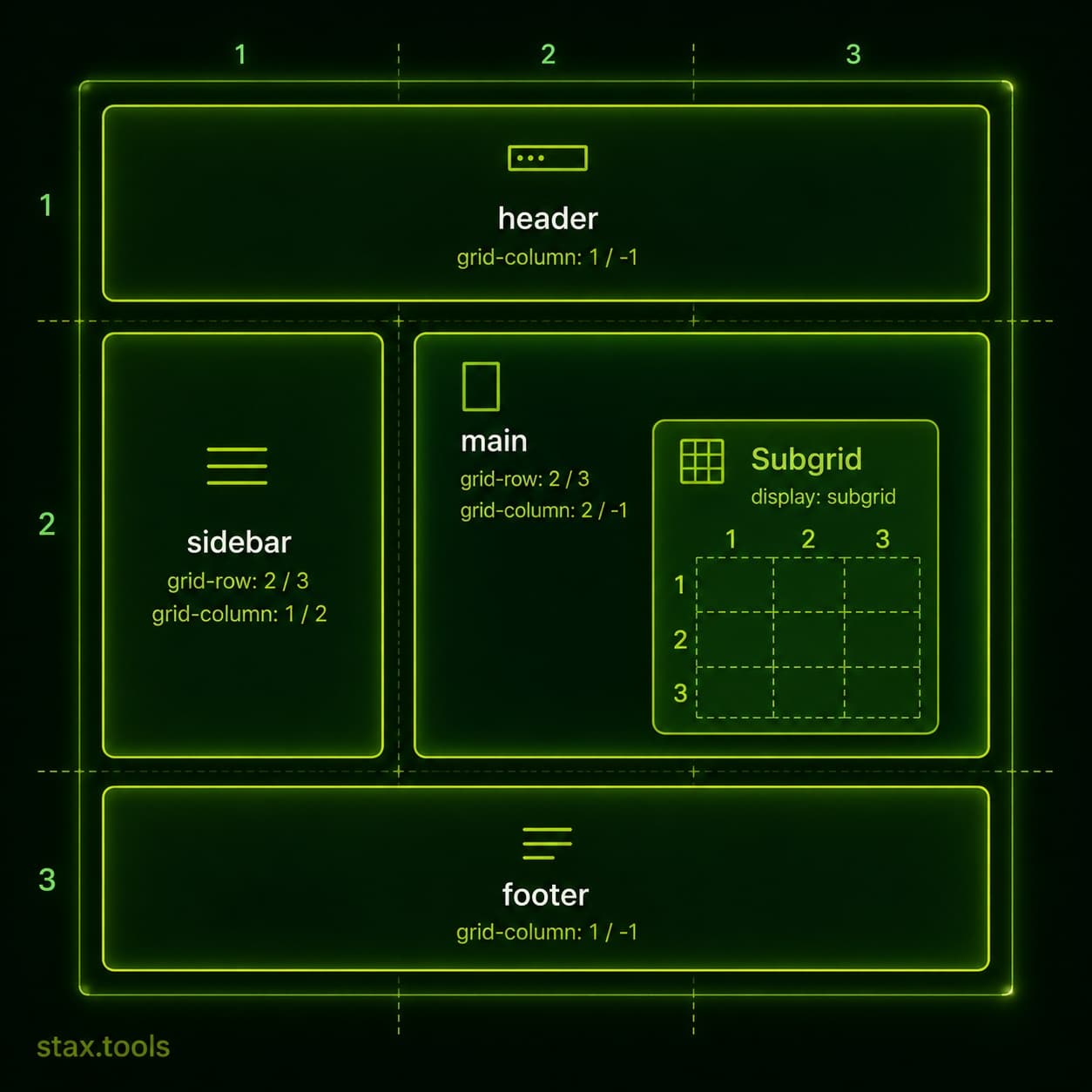 CSS Grid in 2026: Subgrid Is Everywhere — Here's How to Actually Use ItCSS Subgrid reached full cross-browser support in 2023 and is changing how developers build complex layouts. This guide covers the Grid fundamentals you need, how Subgrid solves the alignment problem, and when Grid beats Flexbox.5 min read
 JSON vs XML vs YAML: A Practical Guide to Choosing the Right Data FormatWhen should you use JSON, XML, or YAML? A scenario-first comparison covering syntax, use cases, performance, human readability, schema validation, and the one situation where each format wins.5 min read
Found this useful?
Browse 235+ free privacy-first tools — no login, no uploads, instant results.