
How to Compress a PDF Without Uploading It Anywhere
Most PDF compressors upload your file to a server. Here's how to reduce PDF size entirely in your browser — free, private, and with no file size limits.

This article is currently only available in English. A ภาษาไทย translation is coming soon.
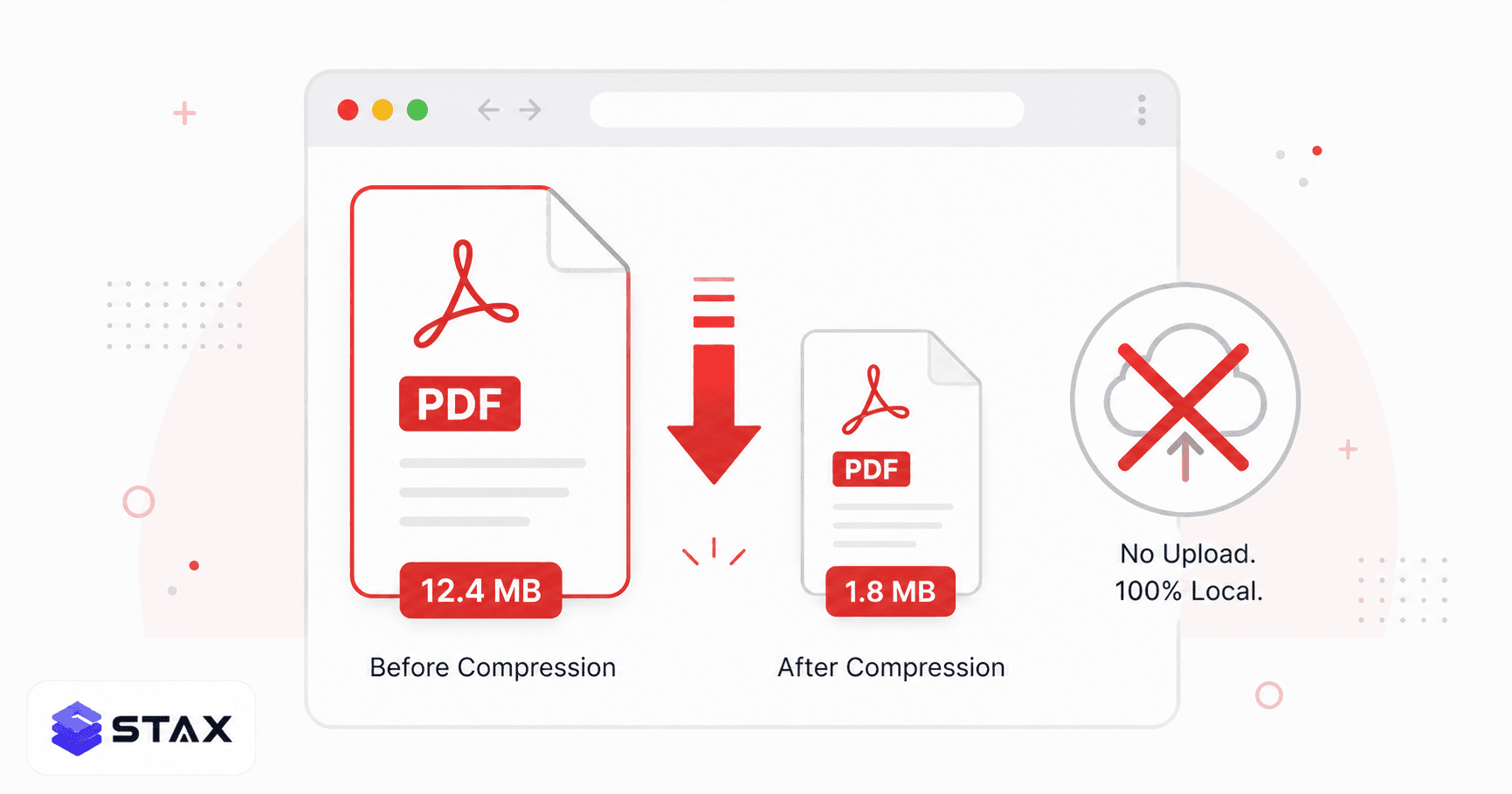
If you've ever Googled "compress PDF online," you've seen the same tools appear: iLovePDF, Smallpdf, PDF Compressor Pro. They all work — but every one of them uploads your document to a remote server to process it.
For a PDF of your coffee shop menu, that's probably fine. For a contract, tax return, medical record, or anything covered by an NDA, it's worth pausing.
What actually happens when you "compress PDF online"
When you drag your file into an online compressor and click "Download," your file travels through this path:
- Your browser uploads the PDF to the service's server (usually AWS S3 or Google Cloud Storage)
- A server-side process (Ghostscript, MuPDF, or similar) runs the compression
- The compressed file is written back to cloud storage
- Your browser downloads the result
- The original is (usually) deleted after a period — often 1–24 hours, depending on the service's privacy policy
The temporary storage window is the exposure. Even well-intentioned services get breached, and the policies governing how long files sit in cloud storage vary widely.
Browser-based compression: how it works differently
Modern browsers can run the same compression algorithms locally using WebAssembly — a binary format that lets compiled C/C++ code (like PDF-lib and Ghostscript's core) run inside your browser tab at near-native speed.
When you use Stax PDF Compressor:
- You select your file — it loads into browser memory only
- PDF-lib restructures the PDF stream: removes unused objects, applies cross-reference stream compression, strips redundant metadata
- The compressed file is written back to a Blob in your browser's memory
- You download it directly — it was never sent anywhere
Open your browser's DevTools → Network tab while compressing. You'll see zero outbound requests with your PDF data. That's verifiable privacy.
How much can you compress a PDF in-browser?
It depends on what's in the PDF:
- Text-heavy PDFs (contracts, reports): typically 10–35% reduction from structural compression alone
- PDFs with embedded images: the structural pass has modest effect on image bytes; compress the source images first with the Image Compressor, then convert to PDF
- Already-optimised PDFs (Adobe Acrobat, Chrome print-to-PDF): minimal reduction — these are already well-structured
Server-side tools like Ghostscript with aggressive settings can sometimes achieve higher compression ratios by resampling embedded images. If you need maximum size reduction and privacy isn't a concern, those tools are still appropriate. For everyday "I need to email this PDF" use cases, in-browser compression handles it.
Step-by-step: compress a PDF without uploading
- Open stax.tools/pdf-compressor in your browser
- Drag your PDF onto the drop zone, or click to select it
- Click Compress PDF
- Download the compressed file
No signup. No email. No upload. The process takes 2–10 seconds depending on file size and your device's CPU.
What about very large PDFs?
The practical limit for browser-based PDF processing is your device's available RAM. On a modern laptop with 8+ GB RAM, files up to 200–300 MB process without issues. For multi-gigabyte PDF archives, a local tool like Ghostscript (free, open-source, command-line) is more appropriate.
# Ghostscript one-liner for heavy compression
gs -sDEVICE=pdfwrite -dCompatibilityLevel=1.4 \
   -dPDFSETTINGS=/ebook -dNOPAUSE -dQUIET -dBATCH \
   -sOutputFile=compressed.pdf input.pdf
/ebook targets 150 DPI images — good for screen reading. Use /printer for 300 DPI or /prepress for 300 DPI with colour preservation.
Quick comparison
| Tool | Upload required | Free tier limits | File size limit |
|---|---|---|---|
| Stax PDF Compressor | ❌ No | None | RAM only |
| iLovePDF | ✅ Yes | 200 MB, daily caps | 200 MB |
| Smallpdf | ✅ Yes | 2 tasks/day | 15 MB (free) |
| Adobe Acrobat Online | ✅ Yes | Requires sign-in | 100 MB |
| Ghostscript (local) | ❌ No | None | Unlimited |
Understanding what makes PDFs large in the first place
Before compressing, it helps to know what's eating the file size. PDF files are structured containers that can hold several types of content, each with its own size characteristics.
Embedded images are usually the biggest contributor. A scanned document at 300 DPI creates enormous image data. A PDF with 20 high-resolution scanned pages can easily exceed 50 MB. Each embedded image is stored in the PDF as a separate stream object.
Embedded fonts are another significant factor. When a PDF embeds a full font rather than a subset, it stores every character in the font file — even the ones not used in the document. A single embedded OpenType font can add 200–500 KB to a PDF.
Version history and annotations accumulate in PDFs that have been edited multiple times. Every save in Adobe Acrobat or similar tools appends changes rather than rewriting the file structure, creating a revision trail. The result is a PDF where 40% of the file size is old deleted content that's no longer visible.
Metadata overhead — author info, creation date, software versions, XMP metadata — is usually small but present in virtually every PDF.
Understanding the source of size helps you choose the right compression strategy.
PDF compression strategies for different document types
Scanned documents (image-heavy PDFs)
Scanned PDFs are essentially images wrapped in a PDF container. Structural compression has minimal effect on image bytes. The most effective approach for scanned PDFs is to reduce the image resolution.
- For screen reading only: 96–150 DPI is sufficient and indistinguishable on screen
- For printing on a regular printer: 150–200 DPI is adequate
- For archiving: 300 DPI preserves quality for future high-resolution printing
If you need to compress a scanned PDF and privacy matters, the workflow is: split the PDF into individual page images, compress each image with the Image Compressor, then combine them back into a PDF with the PDF Merger.
Office-generated PDFs (Word, Google Docs, PowerPoint exports)
These PDFs contain formatted text, embedded fonts, and typically some images. Structural compression works well here. Removing unused font subsets, compressing object streams, and stripping metadata can reduce these files by 15–40% without any visible quality change.
PDFs with lots of vector graphics
Vector elements (charts, diagrams, SVGs embedded as PDF graphics) are inherently small — vectors scale without file size increase. Compression has little impact on these. If a vector PDF is large, the issue is usually embedded images within the layout, not the vectors themselves.
How India-specific PDFs create compression challenges
In India, common PDF types have specific characteristics worth knowing:
Government forms and certificates (PAN card, Aadhaar, income certificates) are often generated with embedded fonts for multiple scripts (Devanagari, Latin), creating larger-than-expected files from seemingly simple documents. The PDF Compressor handles these well.
Bank statements and salary slips are usually generated by banking software with verbose metadata and unoptimised font embedding. Structural compression consistently reduces these by 20–35%.
Property documents and agreements scanned at high DPI by registration offices are often 10–50 MB. These need image resampling (a server-side operation) for significant reduction. For sharing these over WhatsApp (25 MB limit), the PDF Splitter can split them into smaller parts if compression alone isn't sufficient.
Verifying compression quality after download
After downloading a compressed PDF, check three things:
- Text is still selectable: click and drag across text in a PDF viewer. If text is selectable, it was properly preserved.
- Images are visibly acceptable: zoom in to 100% and check that images haven't become pixelated or blocky.
- All pages are present: quickly scroll through to confirm page count matches.
The Stax PDF Compressor uses lossless compression only, so text, images, and page count are always preserved identically. There is no quality trade-off to evaluate — the output is structurally smaller but content-identical.
When to use cloud tools instead
Despite the privacy advantages of in-browser compression, there are situations where cloud tools are the right choice:
- Extreme size reduction needed: Server tools like Ghostscript with image resampling can achieve 80–90% reduction on scanned PDFs. Browser tools cannot resample embedded images.
- Batch processing thousands of files: Server automation handles volume that browser tools can't.
- Integration with document workflows: If compression needs to happen automatically as part of a business process, a server-side pipeline (AWS Lambda + Ghostscript, for example) is appropriate.
- Non-sensitive files only: If the document has zero sensitive content — a restaurant menu, a public brochure, a flyer — cloud tools are perfectly fine.
The bottom line
For sensitive documents, browser-based compression is the correct choice — not because cloud tools are untrustworthy, but because eliminating the upload step eliminates the exposure entirely. For everyday files where privacy isn't a concern, any of the tools above work fine.
Understanding the structure of your PDF — whether it's image-heavy, text-heavy, or a mix — helps you set realistic expectations for how much compression will help. For most business documents, contracts, and forms, structural in-browser compression reduces file size meaningfully without any quality compromise.
Try Stax PDF Compressor — it's free, runs in your browser, and works on any device without installation. For very large scanned documents, combine it with the PDF Splitter to work in smaller chunks if needed.
If you regularly handle sensitive PDFs — payslips, contracts, bank statements, tax documents — the combination of in-browser compression, the PDF Merger for assembly, and the PDF Splitter for extracting pages gives you a complete privacy-first PDF workflow with no cloud account, no upload, and no file size anxiety.
Harshil
Developer & Founder, stax.tools
Harshil is the developer behind stax.tools, building privacy-first tools that run entirely in your browser.
More by Harshil →Found this useful?
Browse 235+ free privacy-first tools — no login, no uploads, instant results.