
How to Read and Write a Cron Expression: The Complete Guide
Step-by-step guide to understanding cron syntax — the five fields, special characters, common patterns, timezone pitfalls, and how to validate expressions before deploying.

This article is currently only available in English. A Français translation is coming soon.
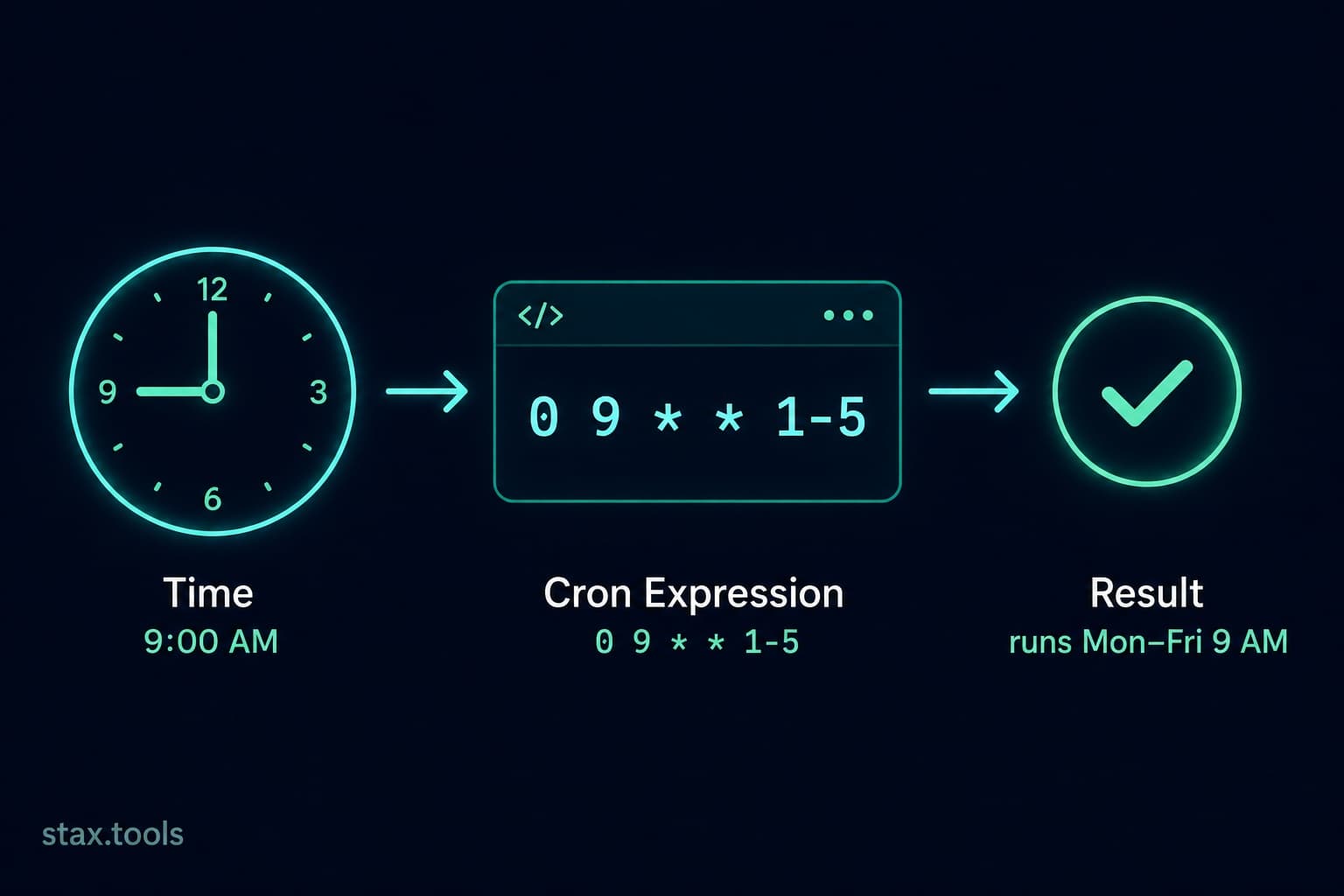
Cron is one of the oldest scheduling tools in computing — it has been running Unix systems since 1975. Despite its age (or because of it), cron syntax remains confusing for developers who encounter it infrequently. You know it controls when something runs. You're less sure what 0 2 * * 1-5 actually means, and you're not confident enough to write one from scratch without second-guessing yourself.
This guide walks through every field, every special character, and the patterns you'll actually use — then shows you how to validate expressions before they go anywhere near production.
Step 1: Understand the five fields
A standard cron expression has five fields separated by spaces:
┌─────────── minute        (0–59)
│ ┌───────── hour          (0–23)
│ │ ┌─────── day of month  (1–31)
│ │ │ ┌───── month         (1–12 or JAN–DEC)
│ │ │ │ ┌─── day of week   (0–7, where 0 and 7 are both Sunday, or SUN–SAT)
│ │ │ │ │
* * * * *
A * in any field means "every valid value" — every minute, every hour, every day. The expression * * * * * runs every minute of every day.
Parse and explain any cron expression at the Stax Cron Expression Parser — paste an expression and it tells you exactly when it runs in plain English.
Step 2: Learn the five special characters
* — every value
* * * * * — runs at every minute.
, — list of values
0 9,17 * * * — runs at 9:00 AM and 5:00 PM every day.
- — range of values
0 9-17 * * * — runs at the top of every hour from 9 AM to 5 PM.
/ — step value
*/15 * * * * — runs every 15 minutes (0, 15, 30, 45).
0 */2 * * * — runs every 2 hours at the top of the hour (0:00, 2:00, 4:00...).
? — no specific value (day fields only)
Some cron implementations (including Quartz Scheduler used in many Java/Spring applications) use ? in either the day-of-month or day-of-week field when the other field is specified, to indicate "I don't care about this field." Standard Unix cron does not support ? — * is used instead.
Step 3: Build common patterns
| Expression | Runs | Plain English |
|---|---|---|
0 * * * * |
Top of every hour | Every hour at :00 |
0 0 * * * |
Daily at midnight | Every day at 00:00 |
0 2 * * * |
Daily at 2 AM | Every day at 02:00 |
0 9 * * 1-5 |
Weekday mornings | Mon–Fri at 09:00 |
0 0 * * 0 |
Weekly, Sunday midnight | Every Sunday at 00:00 |
0 0 1 * * |
First of every month | 1st of each month at 00:00 |
0 0 1 1 * |
Once a year | January 1st at 00:00 |
*/5 * * * * |
Every 5 minutes | All day, every 5 min |
0 9-17 * * 1-5 |
Business hours | Mon–Fri, 9 AM–5 PM, hourly |
30 23 L * * |
Last day of month | 23:30 on the last day (Quartz) |
Use the Stax Cron Expression Builder to visually construct expressions and see them update in real time.
Step 4: Watch out for these common mistakes
Mistake 1: Confusing day-of-month and day-of-week interaction
In most Unix cron implementations, if you specify a non-* value in both the day-of-month and day-of-week fields, the job runs when either condition is true — not both. This catches developers who expect 0 9 1 * 1 to run "at 9 AM on the first of the month, but only if it's Monday." It actually runs at 9 AM on the 1st of every month and every Monday.
To run only on "the first Monday of the month," you need application-level logic in the script itself, not the cron expression.
Mistake 2: Month and day-of-week numbering
Month: 1 = January, 12 = December (1-based).
Day of week: 0 = Sunday in most implementations, but 7 is also Sunday in many. Monday is 1. Saturday is 6. Some schedulers start at 1 for Monday — check your implementation.
Named values remove the ambiguity: MON, TUE, WED, THU, FRI, SAT, SUN and JAN through DEC work in most modern cron implementations.
Mistake 3: Thinking */60 is valid
*/60 in the minute field means "every 60 minutes." Since the minute field only has values 0–59, this means minute 0 only (60 mod 60 = 0). To run every hour at minute 0, use 0 * * * *, not */60 * * * *.
Mistake 4: Forgetting the sixth field in some implementations
Many tools add a sixth field for seconds (Quartz Scheduler, Spring @Scheduled, AWS EventBridge) or a sixth field for year (Quartz). AWS EventBridge cron uses a six-field format with year: minute hour day-of-month month day-of-week year. Always verify which format your specific scheduler expects.
| Scheduler | Fields | Notes |
|---|---|---|
| Unix/Linux cron | 5 (min hr dom mon dow) | Standard |
| Quartz (Java) | 6 or 7 (sec min hr dom mon dow [year]) | Second field first |
| AWS EventBridge | 6 (min hr dom mon dow year) | Year added at end |
| Kubernetes CronJob | 5 (standard) | Same as Unix cron |
| GitHub Actions | 5 (standard) | UTC only |
Step 5: Handle timezones correctly
Standard cron runs in the timezone of the server it's on — usually UTC on cloud servers. 0 9 * * * on a UTC server runs at 9:00 AM UTC, which is 2:30 PM IST (UTC+5:30).
When your business requirement is "run at 9 AM Mumbai time," the options are:
- Convert to UTC:
30 3 * * *(9:00 IST = 3:30 UTC) - Use the system timezone: Set
TZ=Asia/Kolkatain the cron environment (supported in many cron implementations via theCRON_TZorTZvariable at the top of the crontab) - Use a scheduler that supports timezone-aware expressions: AWS EventBridge, GCP Cloud Scheduler, and Kubernetes CronJob all support timezone parameters directly
The UTC offset approach breaks during DST transitions if any of your servers are in DST-observing regions. Use named timezones (Asia/Kolkata, America/New_York) wherever your scheduler supports them.
Step 6: Validate before deploying
Never deploy a cron expression to production without verifying it against a parser first. A single wrong character can mean the job runs every minute instead of once a day — or not at all.
Browser tools:
- Stax Cron Expression Parser — paste any expression and see the next 5 run times in plain English
- Stax Cron Expression Builder — build visually and export the expression
In code (Node.js):
const cron = require('node-cron');
console.log(cron.validate('0 9 * * 1-5')); // true or false
Checking next run times (Python):
from croniter import croniter
from datetime import datetime
c = croniter('0 9 * * 1-5', datetime.now())
for _ in range(5):
    print(c.get_next(datetime))
Quick reference card
# Run at 2:30 AM every day
30 2 * * *

# Run at 9 AM on weekdays only
0 9 * * 1-5

# Run every 15 minutes
*/15 * * * *

# Run at midnight on the 1st and 15th of each month
0 0 1,15 * *

# Run every hour during business hours on weekdays
0 9-17 * * 1-5

# Run once a week on Sunday at midnight
0 0 * * 0

# Run at 6 AM and 6 PM every day
0 6,18 * * *
By Harshil Shah, developer and founder at Stax Tools. Cron field behaviour verified against the IEEE Std 1003.1 (POSIX) specification and Quartz Scheduler documentation.
Sources & methodology
- IEEE Std 1003.1-2017 (POSIX.1-2017) — cron utility specification
- Quartz Scheduler documentation — quartz-scheduler.org/documentation
- AWS EventBridge Scheduler — docs.aws.amazon.com/scheduler/latest/UserGuide/schedule-types.html
Harshil
Developer & Founder, stax.tools
Harshil is the developer behind stax.tools, building privacy-first tools that run entirely in your browser.
More by Harshil →Found this useful?
Browse 235+ free privacy-first tools — no login, no uploads, instant results.