
How to Merge PDFs Without Uploading Them Anywhere (2026 Guide)
Combine multiple PDFs into one — in your browser, without uploading them to any server. Works for invoices, contracts, bank statements, and scanned IDs.

This article is currently only available in English. A العربية translation is coming soon.
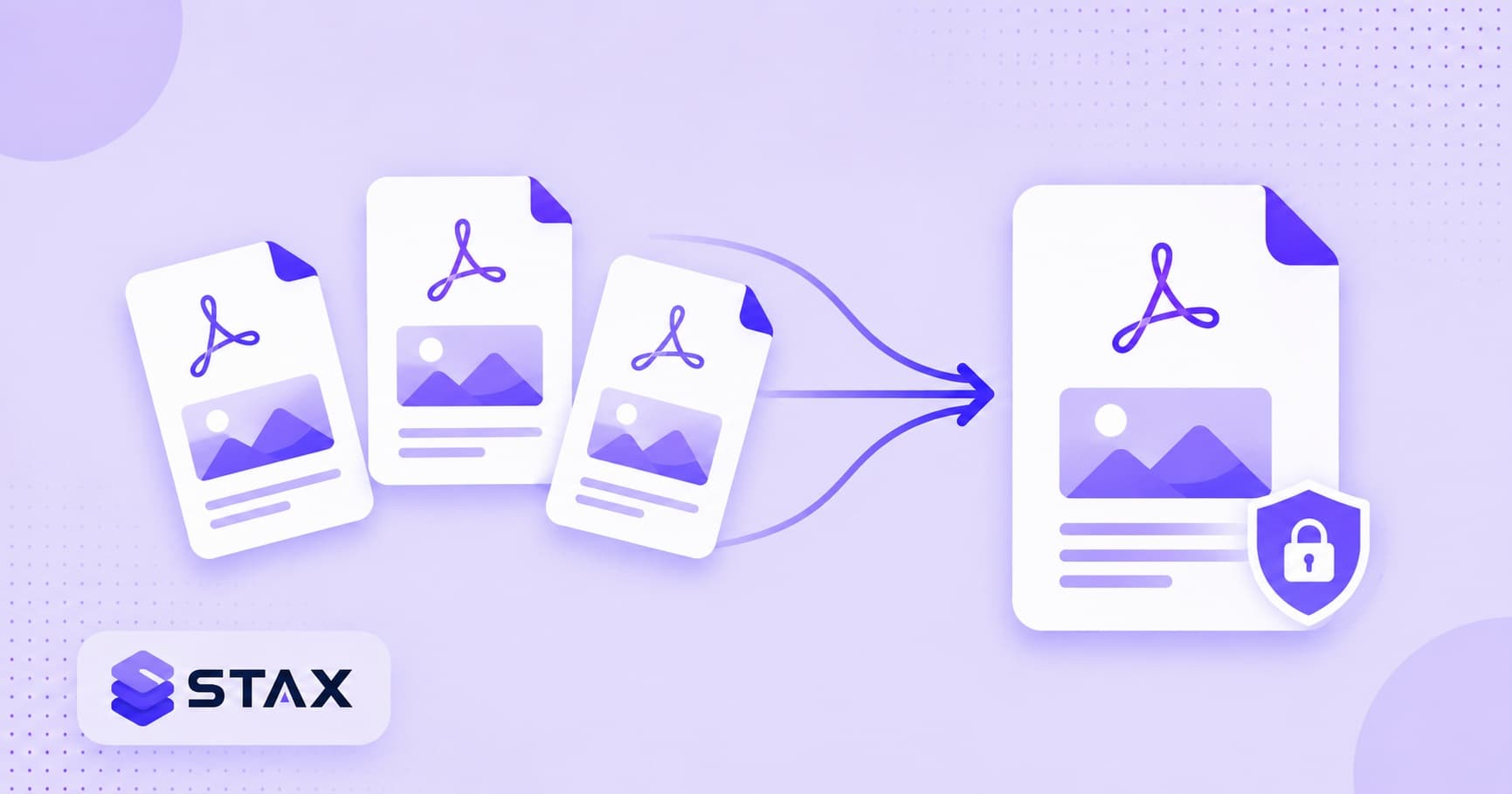
If you've ever tried to merge PDFs without uploading them to some random site, you've probably noticed the same pattern: the top three Google results all ask you to upload your file to their server, wait, and then download the merged result. For a takeaway menu, that's fine. For a bank statement, a salary slip, an Aadhaar copy, or a signed contract — it's a real problem.
This guide shows how to merge PDFs entirely in your browser, with the file data never leaving your device. It works on Windows, macOS, Android, and iOS, on the same page you're reading right now. We'll also cover what to do when the merged file is too big, how to reorder pages, and the common mistakes that produce a broken output.
Why "without uploading" actually matters
Most online PDF mergers work the same way under the hood:
- You drag a PDF onto their site.
- The file is uploaded to their server.
- Their server merges the PDFs and gives you back a download link.
- The original files sit on their server for "24 hours" (or longer, depending on the privacy policy).
This is fine for a brochure. It's not fine for anything containing your name, signature, account numbers, or scanned ID — which is most of what people actually want to merge. A salary slip, a rent agreement, a GST invoice, a passport photocopy — none of those should leave your laptop just because you wanted them in a single file.
The good news: modern browsers can do the merging themselves, using JavaScript libraries that run entirely on your device. No server. No upload. Same output. The PDF Merger on Stax Tools does exactly that — drop the files in, drag to reorder, click Merge, download.
Step-by-step: merging two or more PDFs in your browser
The process is the same regardless of how many PDFs you're combining:
- Open the PDF Merger. No signup, no install.
- Drop or pick your PDFs. The tool reads each file directly off your disk into the browser's memory.
- Reorder them by dragging. First file = first pages of the output. Drag the thumbnails to change the sequence.
- (Optional) Remove individual pages. If you only need pages 1–3 of a 10-page document, mark the others to skip.
- Click Merge. The new combined PDF is built in-browser.
- Download. The output PDF saves to your Downloads folder. The originals on your laptop are untouched.
Everything from step 2 to step 5 happens on your device. The browser tab's network activity stays empty — you can verify this by opening DevTools → Network before clicking Merge.
What to do if the merged file is too big
PDF merge doesn't normally inflate file size much — the combined file is roughly the sum of its parts. But "roughly the sum" can still be problematic if you're attaching the result to an email (typical limits: Gmail 25 MB, Outlook 20 MB) or uploading to a government portal (Income Tax e-filing: 5 MB; Aadhaar self-service updates: 2 MB).
Two options:
Option A: Compress after merging. Run the merged output through the PDF Compressor. For PDFs that include scanned images, this usually cuts the file size by 50–80% without changing the visible quality. Like the merger, it runs entirely in your browser.
Option B: Split first, then merge selectively. If you only need certain pages of a long PDF before merging, use the PDF Splitter to extract just the relevant range, then merge those smaller pieces. Lower input size in, lower output size out.
Reordering pages and inserting individual pages
A common case: you want a single PDF that contains pages 1–5 of contract.pdf, then the entire annexure.pdf, then the signed page 12 of nda.pdf. Three different sources, custom page selection from each.
Most browser-based mergers (including the Stax PDF Merger) handle this in two steps:
- For each source PDF, split out only the pages you need first using a PDF Splitter.
- Then drop all the extracted single-page or short-range PDFs into the merger in the order you want them.
The result is a single, sequenced PDF — no Adobe Acrobat subscription required.
If you're doing this often (lawyers, accountants, HR teams compiling onboarding packets), bookmark the Adobe Acrobat Alternative page on Stax. It covers split, merge, compress, rotate, and convert in a single workflow without any of the files ever uploading anywhere.
Combining images and PDFs into one file
Sometimes "merge my PDFs" really means "turn this collection of JPG receipts plus this PDF invoice into one document." The order of operations:
- Use Image to PDF to convert each JPG/PNG screenshot or photo into a single-page PDF.
- Then drop all the resulting PDFs (including the original PDF invoice) into the PDF Merger.
- Reorder, merge, download.
The image-to-PDF conversion also runs locally — useful for things like compiling reimbursement receipts for an expense report without leaking the photos.
Common mistakes (and how to avoid them)
❌ Merging encrypted PDFs. If a source PDF has a password, the merger can't read it. Remove the password first (or open the PDF in your browser/Preview, then re-export it as an unencrypted copy).
❌ Wrong order in the output. The merger uses the order you arranged the file list, not the alphabetical order of filenames. Always drag the thumbnails to the order you want before clicking Merge.
❌ Skipping the size check. A 4-file merge can produce a 30 MB output — bigger than most email attachment limits. Run the compressor if you're emailing it.
❌ Re-saving lossy. Merging a lossless PDF and then compressing it twice can introduce blurring in scanned images. Compress once on the final merged file, not on each input.
Privacy: what actually leaves your device?
When you use a client-side merger, the answer is nothing. The merger downloads a few hundred KB of JavaScript and WASM the first time you visit, and from that point on:
- Your PDFs are read into your browser's memory directly from your disk.
- The merging is computed by your CPU.
- The output PDF is written back to your Downloads folder.
- No HTTP request is made with the PDF data in it.
You can verify this in DevTools (F12) → Network tab: drop a PDF in, click Merge, and watch the request count stay flat. That's the test that matters — not the privacy policy text, the actual network activity.
TL;DR
For a quick one-off merge: use the PDF Merger. Drop in two or more PDFs, drag to reorder, click Merge, download. Nothing uploads.
For documents with sensitive content (salary slips, IDs, contracts, financial statements): use a client-side merger — verify with DevTools that no upload happens — and compress the output with the PDF Compressor if you're emailing it.
PDFs that need merging most often — and the privacy risks each carries
Understanding which document types are highest risk helps you make better decisions about which tools to trust.
Tax and financial documents: ITR acknowledgements, Form 26AS, salary slips, bank statements, capital gains statements. These contain PAN numbers, account numbers, transaction amounts — highly sensitive. Never upload these to a cloud tool without checking the retention policy carefully.
Identity documents: PAN card, Aadhaar (masked or full), passport photo page, driver's licence. Aadhaar in particular is regulated — uploading it to third-party servers may violate UIDAI guidelines. Use only client-side tools for Aadhaar-containing PDFs.
Legal documents: rental agreements, employment contracts, NDAs, property sale agreements. These contain the full names, addresses, and signatures of all parties. A data breach at a PDF processing service exposes all parties, not just you.
Medical documents: discharge summaries, test reports, insurance claim documents. Protected health information that should never be processed by a random cloud service.
Business documents: GST invoices, vendor contracts, purchase orders, internal financial reports. Often contain commercially sensitive figures that could harm your business if exposed.
For all of these categories, the client-side approach is the right default. The 30-second DevTools verification (Network tab, watch for POST requests with your file data) gives you certainty.
Batch merging — when you have many PDFs
A common scenario: you have 12 months of bank statements, each as a separate PDF, and need to merge them into a single annual archive. Or you have 50 individual invoice PDFs that need to be combined for an audit.
The PDF Merger handles this in one session: drop all 12 files at once, they load simultaneously, drag to arrange in chronological order, click Merge. The browser processes them sequentially in memory. For 12 typical bank statement PDFs (1–5 pages each), this takes about 5–15 seconds on a modern device.
If the merged result is very large (over 25 MB), run it through the PDF Compressor to reduce file size before emailing or uploading to a portal. For government portals with strict file size limits (like Income Tax e-filing's 5 MB limit), compression before upload is often necessary.
Using PDF merge in Indian government portal workflows
Several Indian government digital services require combined PDFs as part of the application process:
Income Tax Portal: attaching multiple supporting documents (Form 16, rent receipts, investment proofs) as a single PDF rather than multiple attachments simplifies the upload process and stays within size limits.
GST Portal: combining invoices and supporting documents for filing or audit responses into a single structured PDF is cleaner than multiple uploads.
EPFO: uploading combined KYC documents (PAN + Aadhaar + bank statement) as a single PDF is sometimes easier to handle in the EPFO employer portal.
Loan applications at banks and NBFCs: income proof, address proof, and employment documents are often requested as a single merged PDF.
In all of these cases, the documents involved are sensitive, and the merge should happen client-side before uploading to the government portal. Merge first on your device → upload the merged result to the portal. Not the other way around.
TL;DR
For a quick one-off merge: use the PDF Merger. Drop in two or more PDFs, drag to reorder, click Merge, download. Nothing uploads.
For documents with sensitive content (salary slips, IDs, contracts, financial statements): use a client-side merger — verify with DevTools that no upload happens — and compress the output with the PDF Compressor if you're emailing it.
→ Merge your PDFs now — free, in-browser, no upload, no signup.
Harshil
Developer & Founder, stax.tools
Harshil is the developer behind stax.tools, building privacy-first tools that run entirely in your browser.
More by Harshil →Found this useful?
Browse 235+ free privacy-first tools — no login, no uploads, instant results.